Use PowerShell to diagnose and repair Windows, network, storage, update, and system file issues with tools such as winget, DISM, and SFC.
PowerShell is not a magic wand, but it is one of the quickest ways to diagnose and fix common problems on Windows 10 and Windows 11. Whether you are dealing with an unstable network, DNS errors, damaged system files, or low storage, this powerful tool can help when the usual interface is not enough.

Not every command in this guide is exclusive to PowerShell. Some are classic Windows tools, such as ipconfig, netsh, and chkdsk, that can also be run from a console. Using them from PowerShell is a common administrative workflow.
Before making major changes, start PowerShell with administrator privileges. It is also a good idea to create a system restore point so you have a way to return to an earlier state:
Enable-ComputerRestore -Drive "C:\"
Checkpoint-Computer -Description "Before Windows repair commands" -RestorePointType MODIFY_SETTINGS
Collect basic system information
Before troubleshooting, check the Windows version and disk status. This helps narrow down the cause and find a suitable solution.
Get-ComputerInfo | Select-Object WindowsProductName, WindowsVersion, OsBuildNumber, OsArchitecture
Get-Volume | Sort-Object DriveLetter | Format-Table DriveLetter, FileSystemLabel, HealthStatus, SizeRemaining, Size
Update apps with winget
The Windows Package Manager, winget, can update installed apps. Out-of-date software can sometimes contribute to system problems.
# Check for available upgrades
winget upgrade

# Upgrade all apps
winget upgrade --all

# Include apps with unknown versions (use caution)
winget upgrade --all --include-unknown
Quick network diagnostics
Use these commands to inspect network configuration and test connections to external services:
ipconfig /all
Test-NetConnection 1.1.1.1
Test-NetConnection google.com -Port 443
Resolve-DnsName google.com
Release and renew the IP address
If you have DHCP or DNS cache problems, refresh the network settings:
ipconfig /release
ipconfig /renew
ipconfig /flushdns
Reset Winsock and the TCP/IP stack
If apps cannot connect even though the internet is available, resetting the network stack may help:
netsh winsock reset
netsh int ip reset
Note: Restart the computer after running these commands.
Restart a network adapter
If a Wi-Fi or LAN adapter stops responding, restart it from the console without rebooting the whole system:
Get-NetAdapter
Restart-NetAdapter -Name "Wi-Fi"
Repair system files with DISM and SFC
The usual order is to run DISM first to repair the component store, then SFC to repair system files:
DISM.exe /Online /Cleanup-Image /RestoreHealth
sfc /scannow
Check and repair a disk
Use these options to check the file system and look for disk errors:
# Online scan without repair
chkdsk C: /scan

# Repair logical file system errors
chkdsk C: /f

# Deep scan for disk issues (takes longer)
chkdsk C: /r
PowerShell alternative: Repair-Volume -DriveLetter C -Scan.
Optimize a disk with TRIM or defragmentation
Regular disk maintenance can help keep storage working well:
# TRIM for an SSD
Optimize-Volume -DriveLetter C -ReTrim -Verbose

# Defragment an HDD
Optimize-Volume -DriveLetter D -Defrag -Verbose
Find folders using the most space
If a disk fills unexpectedly, this script helps identify large folders:
$Path = "$env:LOCALAPPDATA"
Get-ChildItem $Path -Directory -Force -ErrorAction SilentlyContinue | ForEach-Object {
    $Size = (Get-ChildItem $_.FullName -Recurse -File -Force -ErrorAction SilentlyContinue | Measure-Object -Property Length -Sum).Sum
    [PSCustomObject]@{ Folder = $_.FullName; SizeGB = [math]::Round($Size / 1GB, 2) }
} | Sort-Object SizeGB -Descending | Select-Object -First 20
Delete temporary files
Clearing temporary folders can free space and may resolve issues with some apps:
Remove-Item "$env:TEMP\*" -Recurse -Force -ErrorAction SilentlyContinue
Remove-Item "C:\Windows\Temp\*" -Recurse -Force -ErrorAction SilentlyContinue
Review system event logs
Instead of guessing, inspect system events from the last three days:
Get-WinEvent -FilterHashtable @{ LogName='System'; Level=1,2,3; StartTime=(Get-Date).AddDays(-3) } | Select-Object TimeCreated, ProviderName, Message | Format-List
Manage services
Check the status of important services, such as wuauserv for Windows Update, and restart a service when necessary:
Get-Service | Where-Object {$_.Status -eq "Stopped"}
Restart-Service -Name wuauserv
Troubleshoot Windows Update
If an update appears stuck, restarting the BITS and Windows Update services may help:
Stop-Service wuauserv -Force
Stop-Service bits -Force
Start-Service bits
Start-Service wuauserv
Repair Microsoft Store apps
Resetting the Store cache or re-registering an app can help with problems in Microsoft Store apps:
wsreset.exe
# Re-register Store (use only when needed)
Get-AppxPackage -AllUsers Microsoft.WindowsStore | ForEach-Object { Add-AppxPackage -DisableDevelopmentMode -Register "$($_.InstallLocation)\AppXManifest.xml" }
Monitor CPU and memory
Quickly review the processes using the most computer resources:
Get-Process | Sort-Object CPU -Descending | Select-Object -First 10 Name, CPU
Get-Process | Sort-Object WorkingSet -Descending | Select-Object -First 10 Name, @{Name="RAM_MB";Expression={[math]::Round($_.WorkingSet/1MB,2)}}
Debloat tools: use caution
Tools such as winutil can remove system components. Create a restore point first and review what the script will change:
irm christitus.com/win | iex
Recommended troubleshooting order
A practical sequence is:
- Restart the computer and run Windows Update.
- Run
winget upgrade --all. - Diagnose the network and refresh it if needed with ipconfig /flushdns.
- Run DISM, then SFC.
- Check the disk with chkdsk.
- Review system logs and resource usage.
Quick command reference
Keep commonly used commands nearby, such as Get-ComputerInfo, Get-Volume, ipconfig /all, DISM, sfc /scannow, and chkdsk.
Conclusion
PowerShell is a powerful tool for troubleshooting Windows when used carefully. Create a restore point, start with basic diagnostics, and move to more significant repairs only when needed.
AI Research in 2026: Agentic Workflows
Learn how research workflows can plan searches, compare sources, verify claims, and assemble reports with human review.

Where Is the Money Going? A Complete Guide to Payment Card Security
Find the source of unrecognized card charges, secure your accounts, and learn what to ask your bank about subscriptions, phishing, wallets, and card controls.
Advanced Digital Security and Server Hardening
Learn layered ways to protect your digital identity with passkeys, hardware security keys, WireGuard, and server hardening.
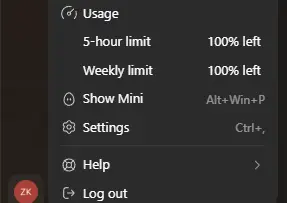
My ChatGPT Subscription Expired and My Codex Limits Reset
My subscription renewal failed on the 23rd. After it expired and I renewed, the Codex Usage page showed 100% remaining. Here is what I observed and why it is not a guaranteed trick.

How to Free Up Space in Gmail, Google Photos, and Drive
Clear Gmail, Google Photos, and Drive without deleting important data, with steps for finding large files and emptying trash.

200 Digital Tips Everyone Should Know in 2026
Practical tips for Android, iPhone, Windows, Chrome, Google, photos, PDFs, Gmail, cloud storage, and privacy, with clear steps and limitations.
Share your thoughts, questions, or tips about this article.