Turn an Android phone or iPhone into a webcam over USB or Wi-Fi. Compare Windows Connected Camera, Android UVC, Continuity Camera, Camo, DroidCam, Iriun, iVCam, FineCam, NDI, and OBS, with setup steps and troubleshooting.
Guide - 2026 · Updated: October 8, 2026.
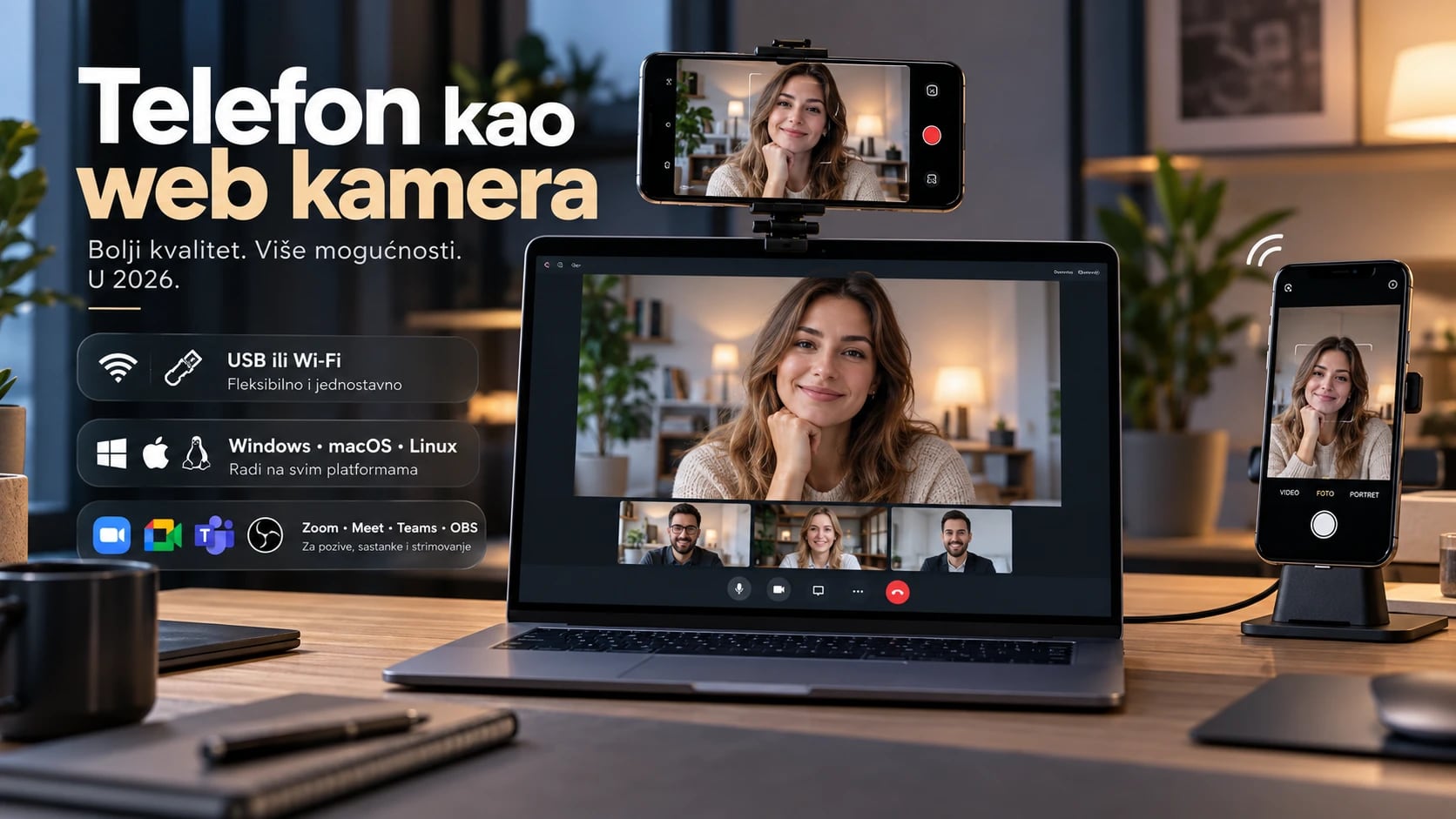
A phone camera almost always produces a better image than a laptop's built-in webcam. The main rear camera has a larger sensor, better optics, reliable autofocus, HDR, and image processing developed by teams specializing in photography. A built-in laptop camera, by contrast, is a tiny module squeezed into a thin screen bezel, and the difference becomes obvious as soon as the room gets a little darker.
The good news is that in 2026 you do not need to buy a separate webcam to look professional in a meeting. This step-by-step guide explains how to use an Android phone or iPhone as a webcam on Windows, macOS, and Linux, over USB or Wi-Fi, with Zoom, Google Meet, Microsoft Teams, Discord, and OBS.
The available solutions fall into three groups:
- Built-in system options that do not need a separate webcam app: Windows Connected Camera for Android, Android USB Webcam (UVC) mode, and Apple Continuity Camera.
- Universal apps that connect a phone and computer over USB or Wi-Fi: Camo, DroidCam, Iriun, iVCam, and FineCam.
- Advanced options for streaming, multiple cameras, and production: NDI and OBS Virtual Camera.
Quick suggestions for what to try first:
- Android + Windows 11: Microsoft's built-in option through the Link to Windows app.
- Android with a “Webcam” option in USB settings: Native USB webcam mode, with no app needed.
- iPhone + Mac: Apple Continuity Camera.
- iPhone + Windows: Camo, DroidCam, Iriun, iVCam, or FineCam.
- Linux: DroidCam, Iriun, or native UVC if your phone supports it.
- OBS and streaming: DroidCam OBS, Camo, or another source, then OBS Virtual Camera.
Important: Always try the built-in system option first if it is available. It is free, installs no extra drivers, and uses no background resources. Third-party apps make sense when the system option is unavailable or you need more control over the image.
What you need
Before you begin, check that you have everything on this list:
- An Android phone or iPhone that charges reliably and is not overheating.
- A computer or laptop running Windows, macOS, or Linux.
- A stable Wi-Fi network if you want a wireless connection. Ideally, the phone and computer should be on the same network, using the 5 GHz or 6 GHz band.
- A good USB data cable for a wired connection: USB-C to USB-C, USB-C to USB-A, or Lightning, depending on your devices.
- A phone holder: a monitor clamp, small tripod, or stand.
- Good lighting: a window in front of you or a small LED lamp.
- An external microphone or headphones if needed, since the phone is mainly serving as the camera.
Note: Many cheap cables, especially ones bundled with chargers, are for charging only and do not transfer data. If the computer does not recognize the phone, try another cable first. The cable that came with the phone almost always transfers data too.
Native or third-party: what is the difference?
A native, or system, option is a feature built into the operating system by its maker: Microsoft in Windows 11, Google in Android, or Apple in iOS and macOS. You do not install a separate driver, and the phone appears as a regular camera in Zoom or Teams.
A third-party option is an app from an independent developer. You usually install two things: a mobile app on the phone and a desktop client or driver on the computer. In return, you get more settings, support for multiple platforms, and features such as manual focus, background effects, and overlays.
Android + Windows 11: Microsoft's built-in optionFreeAndroidWindows
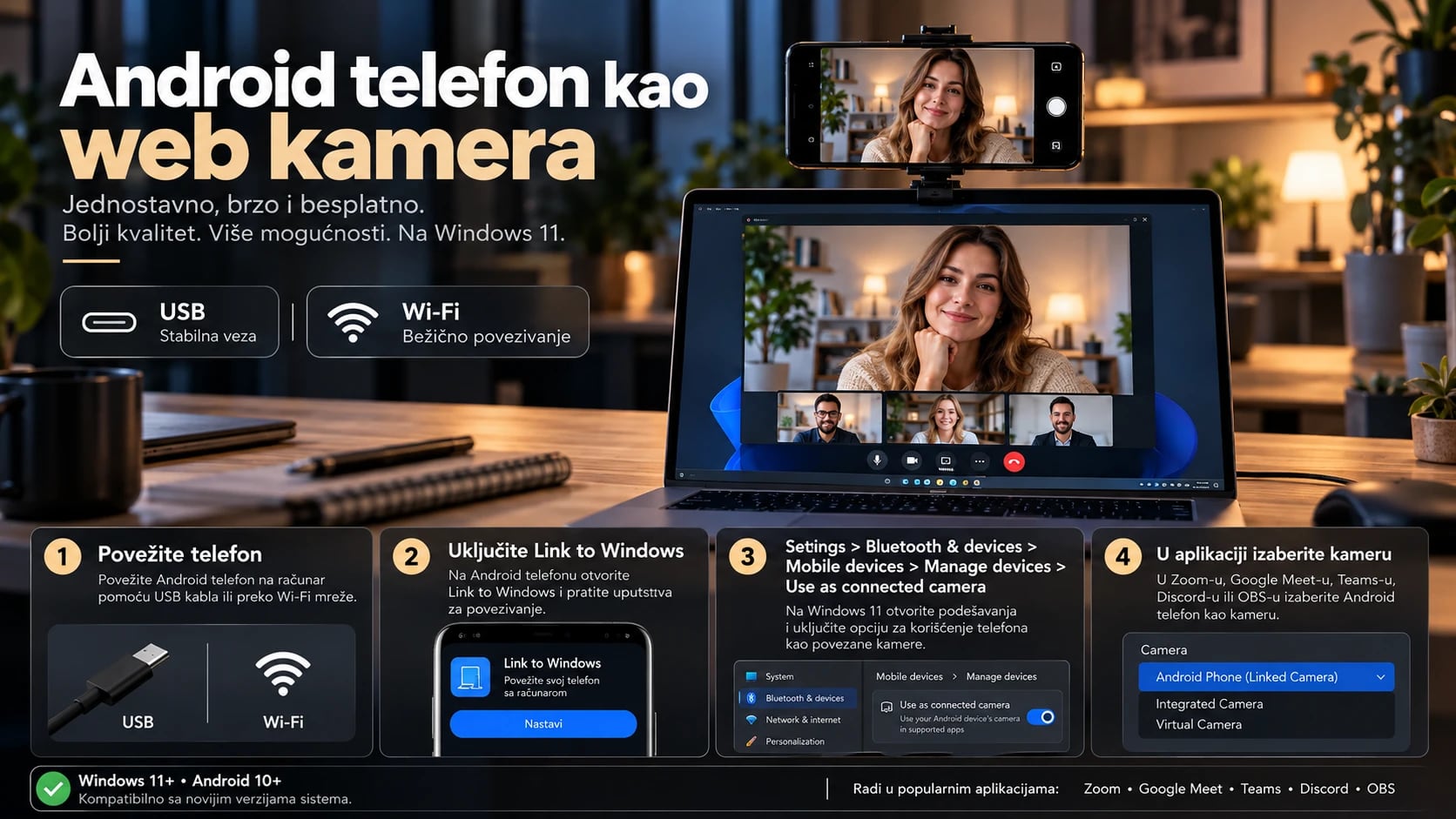
Windows 11 has a built-in Use as connected camera feature. It turns an Android phone connected through the Link to Windows app into a camera that is available to all programs on the computer. You do not install a webcam driver, and the connection is wireless. This option does not work over USB.
Requirements in Microsoft's documentation:
| Requirement | Minimum |
|---|---|
| Computer | Windows 11 |
| Phone | Android 10 or later |
| App on the phone | Link to Windows, recent version (1.24022.0 or later) |
| Connection | The phone must be paired with the Windows computer |
Step 1: Install or open Link to Windows on your phone
On your Android phone, open Google Play and search for Link to Windows. On some phones, including many Samsung models, this feature is already built in and can be found in Quick Settings or under Connected devices. If the app is already installed, update it to the latest version.
Step 2: Connect the phone to the computer
On the computer, open Phone Link (or follow the steps under Mobile devices in Settings) and select Android. A QR code will appear on the computer screen. Scan it with the Link to Windows app on your phone and sign in with the same Microsoft account on both devices. Approve the permissions requested by the phone.
Step 3: Open mobile device settings
On the Windows computer, open:
Settings > Bluetooth & devices > Mobile devices
Step 4: Open Manage devices
Click Manage devices. A list of devices connected to your Microsoft account will appear.
Step 5: Select your Android phone
Find the phone in the list. If it is not there, return to Step 2 and pair the devices again.
Step 6: Turn on Use as connected camera
Turn on Use as connected camera. From this point on, the phone behaves like a camera that Windows and apps can use.
Step 7: Open a call or recording app
Open Zoom, Teams, Google Meet in a browser, Discord, OBS, or the Windows Camera app.
Step 8: Select the phone as the camera
In the video settings, under Settings > Video, Camera, or a similar menu, select the connected Android phone. The first time an app requests an image, a notification appears on the phone asking permission to use the camera. If no notification appears, a window with a camera icon and your phone's name opens from the Windows taskbar with further steps. During streaming, you can usually switch between the front and rear camera on the phone and pause the image.
Advantages
- completely free
- no additional webcam software or drivers
- integrated into Windows 11
- easy switching between the phone's front and rear cameras, where supported
Possible problems and what to check
| Problem | What to do |
|---|---|
| Use as connected camera does not appear | Update Windows 11 through Windows Update and Link to Windows on the phone, then restart the computer |
| Older Windows 11 or app version | Install all available updates. The feature requires a recent version of Link to Windows |
| Phone is not paired correctly | Remove it from Manage devices and pair it again with the QR code |
| Camera permissions are missing | In the phone's Link to Windows app settings, allow camera access |
| Bluetooth or Wi-Fi issue | Turn both on on the phone and computer and check that they are on the same network |
| The feature is still unavailable | Support may depend on the device and region, so use one of the other options later in this guide |
Official instructions: Microsoft Support: Use your mobile device's camera and Manage mobile devices in Windows.
Android as a standard USB webcam (UVC)FreeUSBAndroid
Since Android 14 QPR1, Android has platform support for USB Video Class (UVC). This is the same standard used by ordinary USB webcams. When enabled, the computer sees the phone as a standard webcam, without any app or driver on the computer. It works with Windows, macOS, Linux, and ChromeOS.
Important: This feature is not available on every Android 14 or newer phone. Android provides the foundation, but the phone manufacturer must enable it in its software. Some manufacturers offer it and others do not. The only reliable way to find out is to check your own phone.
How to check for and enable Webcam mode
- Connect the phone to the computer with a USB data cable. Connect it directly to the computer if possible, without a USB hub.
- Open the USB notification on the phone. Swipe down the notification shade and tap a notification such as “Charging this device via USB” or “USB preferences.”
- Look through the options. Under “Use USB for” or a similar heading, check whether Webcam is available.
- Select Webcam. If the option is missing, your phone does not support native UVC mode, so move on to another option in this guide.
- Check that the computer sees the camera. On Windows, open the Camera app or Settings > Bluetooth & devices > Cameras. On macOS, open Photo Booth or FaceTime. On Linux, run
ls /dev/video*in a terminal or open Cheese. - Select the phone as the video source in Zoom, Meet, Teams, or OBS.
When Webcam mode is active, a notification usually appears on the phone that opens the image preview. You may be able to select the front or rear camera and adjust zoom, depending on the manufacturer's implementation.
Check on Linux:
# List video devices. A new /dev/videoN should appear after enabling Webcam mode.
ls /dev/video*
If a new device appears, the phone has been recognized and you can select it in your calling app.
Advantages
- no separate desktop app or driver
- very low latency
- stable USB connection
- the phone usually charges while in use
- compatible with standard webcam apps on all major operating systems
Limitations
- not available on all phones
- depends on the phone manufacturer's implementation
- image controls such as focus, exposure, and white balance may be limited
- resolution is often lower than with advanced third-party apps
Official technical documentation: Android Open Source Project: Use a device as a webcam.
iPhone + Mac: Apple Continuity CameraFreeiOSmacOS
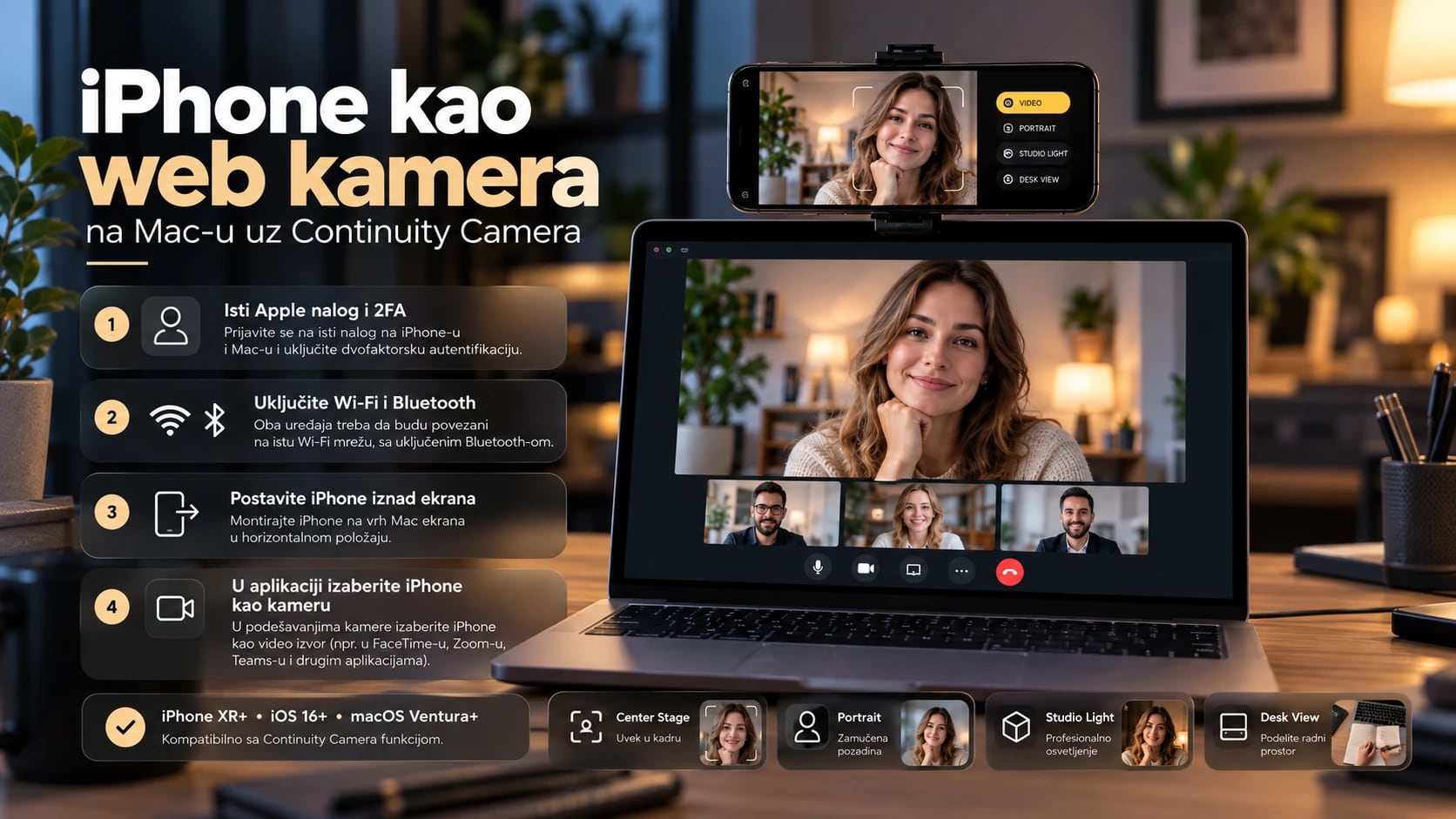
If you have an iPhone and a Mac, this is the simplest option. Continuity Camera is built into iOS and macOS, requires no app, and often works automatically as soon as you place your iPhone near your Mac.
Requirements:
| Requirement | Minimum |
|---|---|
| iPhone | iPhone XR or later |
| iOS | iOS 16 or later |
| Mac | macOS Ventura 13 or later |
| Apple account | Same Apple account on both devices |
| Security | Two-factor authentication enabled |
| Wireless use | Wi-Fi and Bluetooth enabled on both devices |
Wireless setup, step by step
- Sign in to the same Apple account on the iPhone and Mac. On iPhone, check Settings > [your name]; on Mac, check System Settings > [your name].
- Turn on two-factor authentication if it is not already enabled.
- Turn on Wi-Fi and Bluetooth on both devices. It is best to put them on the same Wi-Fi network.
- Check that Continuity Camera is enabled on the iPhone: Open Settings > General > AirPlay & Continuity (on older iOS versions: AirPlay & Handoff) and turn on Continuity Camera.
- Place the iPhone near the Mac in a holder, with the rear camera facing you and nothing covering the lens. Keep the phone locked and stable. Landscape orientation is recommended, but Apple supports portrait too.
- Open FaceTime, Zoom, Teams, Photo Booth, or another app that uses a camera.
- Select the iPhone in the camera menu. In FaceTime, use the Video menu in the top bar. In Zoom and Teams, use the video settings.
With the iPhone in landscape orientation, many apps switch to it automatically. In portrait orientation, select the iPhone manually from the camera menu.
USB connection
You can also connect the iPhone to the Mac with a USB cable. This is a better choice for longer meetings, interviews, and recording: the connection is more stable, does not depend on Wi-Fi, and charges the phone while it is in use. For a wired connection, the iPhone must trust the Mac. The first time you connect it, confirm Trust This Computer on the phone. Then select the camera in the app as usual.
The iPhone microphone is also available as an audio source. Apple notes that you do not need to select it if the Mac already has a built-in or external microphone. If you want to use it, select it under System Settings > Sound > Input.
Apple features you get
Turn these on from Video Effects in Control Center on the Mac while the camera is active. Not all features are available on every iPhone model.
- Center Stage (iPhone 11 or later): The camera automatically follows your movement and keeps you in frame, which is useful if you stand up or walk during a presentation.
- Portrait: Blurs the background and highlights your face, similar to Portrait mode in photos.
- Studio Light (iPhone 12 or later): Brightens your face and slightly darkens the background, which helps when a window is behind you or the room is dim.
- Desk View (iPhone 11 or later): Shows you and an overhead view of your desk at the same time, ideal for showing sketches, documents, or objects.
For details about effects, see Apple's guide to video effects on Mac.
Important: Continuity Camera is part of the Apple ecosystem and works only with iPhone + Mac. It does not work on Windows or Linux.
Official instructions: Apple Support: Continuity Camera, use iPhone as a webcam for Mac.
iPhone + Windows: which option should you choose?
Apple Continuity Camera is not a Windows feature, and Apple has no official way to use an iPhone as a webcam on a Windows computer. For this combination, use a third-party app:
- Camo: The most complete image controls and good quality.
- DroidCam: A popular, affordable option that works especially well with OBS.
- Iriun Webcam: The simplest setup.
- iVCam: Many settings, focused on Windows.
- FineCam: Effects, scenes, and virtual backgrounds.
The process is the same for all of them: install the mobile app on your iPhone from the App Store, then install the corresponding desktop client or driver on your computer. The desktop client creates a virtual camera that appears in Zoom, Teams, and other apps.
Note about USB on Windows: Windows usually needs Apple drivers to communicate with an iPhone over a cable. The easiest way to get them is to install Apple Devices or iTunes from the Microsoft Store. The first time you connect the phone, confirm Trust This Computer on the iPhone.
CamoAndroidiOSWindowsmacOSFreePro
Camo is one of the most complete cross-platform options, suitable for regular calls and more serious work. It stands out for image quality and detailed manual controls.
| Item | Support |
|---|---|
| Phone | iPhone (iOS 15 or later), Android (7.0 or later) |
| Computer | Windows 10 or later, macOS 12.3 or later |
| Connection | USB, Wi-Fi |
Step-by-step setup
- Install Camo on your phone from Google Play or the App Store.
- Install Camo Studio on your computer from the official camo.com website.
- Connect the phone over USB or Wi-Fi. For Wi-Fi, both devices must be on the same network. For USB with an Android phone on Windows, follow the instructions in Camo Studio. You may need to enable USB debugging, explained in the DroidCam section.
- Grant the required permissions for the camera, microphone, and local network on the phone.
- Configure the camera, framing, and image in Camo Studio: Choose the phone camera, resolution, zoom, and other settings.
- Select Camo as the camera in Zoom, Meet, Teams, Discord, or OBS.
Free and Pro versions
The free version provides up to 720p video with no watermark or ads, plus autofocus, 30 fps, and basic image settings such as brightness and contrast. That is enough for testing and ordinary calls.
The Pro version removes the main limits and gives you more control:
- resolutions up to 4K, including 1080p where supported by the phone
- up to 60 fps
- manual focus
- exposure
- ISO and shutter speed where supported
- white balance
- color temperature and tint
- crop and zoom
- portrait mode, blur, and background replacement
- Scene Editor, overlays, and saved presets
- activation on up to two computers
Some Pro features arrive on Android and Windows later than on iPhone and Mac, so check the feature list for your device combination.
Approximate price, checked in October 2026: Camo Pro is available as a monthly or annual subscription, as well as a lifetime license with a one-time payment. The annual option costs less than paying monthly. Businesses can also request an Enterprise plan. Prices can change and may vary by region, so check the current pricing page.
Official website: camo.com.
DroidCam and DroidCam OBSAndroidiOSWindowsLinuxOBSFreePro
DroidCam is one of the most popular and longest-running options. It is especially good for Linux and OBS.
| Item | Support |
|---|---|
| Phone | Android, iPhone |
| Computer (standard webcam client) | Windows 10 and 11, Linux |
| OBS plugin | Windows, macOS, Linux |
| Connection | USB, Wi-Fi |
DroidCam can be used in two ways.
Option 1: DroidCam as a regular webcam
Phone > DroidCam app > desktop client > Zoom, Meet, Teams, Discord
- Install DroidCam on your phone from Google Play or the App Store.
- Install the DroidCam client for Windows or Linux from the official website.
- Open the app on your phone. It displays the phone's IP address and port.
- Wi-Fi: Enter the phone's IP address in the desktop client and click Start.
- USB: Connect the phone by cable and select USB in the client. On Android, enable USB debugging as described below.
- Select DroidCam as the camera in your video app.
Option 2: DroidCam OBS
Phone > DroidCam OBS plugin > OBS > OBS Virtual Camera > Zoom, Meet, Teams, Discord
- Install the DroidCam app on the phone.
- Install the DroidCam OBS plugin for OBS Studio on your computer.
- In OBS, add a DroidCam OBS source and select your phone over Wi-Fi or USB.
- Build your scene in OBS with text, a logo, and other cameras.
- Click Start Virtual Camera, then select OBS Virtual Camera in Zoom or Teams.
This option is best when you want to send a finished scene to a call rather than just the raw phone image.
How to enable USB debugging on Android
Many webcam apps, including DroidCam, iVCam, and Iriun, use ADB for USB connections to Android, so you need to enable USB debugging:
- Open Settings > About phone.
- Tap Build number seven times. On some phones, it is under Software information. A message will confirm that Developer options are enabled.
- Go back and open Settings > System > Developer options. On some phones, Developer options appears directly in Settings.
- Turn on USB debugging.
- Connect the phone to the computer and confirm Allow USB debugging on the phone.
Security: Turn USB debugging off again when you are done. Do not approve USB debugging requests on computers you do not recognize.
DroidCam on Linux
The Linux client uses the v4l2loopback kernel module for the virtual camera. The installation script from the official website usually configures it automatically. If the camera is not visible, on Ubuntu and Debian check:
# Install the virtual camera module
sudo apt install v4l2loopback-dkms

# Check whether DroidCam appeared as a video device
ls /dev/video*
Advantages
- very popular, with many guides and user reports
- a good option for Linux
- excellent OBS integration
- USB and Wi-Fi support
- affordable Pro plan
Free and Pro versions
The free version has no time limit but uses standard definition (SD) with basic features, which is enough for ordinary calls. Pro unlocks up to 1080p as a webcam and up to 4K through OBS where supported by the phone, removes ads, and adds controls such as focus, exposure, zoom, and camera control from the computer. On iPhone 11 and later, Pro also enables the ultra-wide and telephoto lenses.
Approximate price, checked in October 2026: Pro is purchased in the mobile app, either as a one-time purchase or annual subscription. On iPhone, it is approximately 5 USD per year or 15 USD as a one-time purchase. Prices vary by platform and region, so check the app store and the DroidCam Pro page.
Official website: droidcam.app (development team: Dev47Apps).
Iriun WebcamAndroidiOSWindowsmacOSLinuxFreePro
Iriun's main advantage is its simplicity. In most cases, you only need to open the app on your phone and the desktop program on your computer. The image appears automatically, without entering an IP address.
| Item | Support |
|---|---|
| Phone | Android, iPhone |
| Computer | Windows 7 or later, macOS 12.3 or later, Ubuntu 22.04 or later |
| Connection | Wi-Fi, USB |
Step-by-step setup
- Install Iriun Webcam on your phone from Google Play or the App Store.
- Install the Iriun desktop app for Windows, macOS, or Ubuntu from the official website.
- Open both apps.
- Connect the devices: the phone and computer should be on the same Wi-Fi network, and the connection is usually established automatically. For USB, connect the phone with a cable. Android usually requires USB debugging to be enabled.
- Select Iriun Webcam as the camera in your video app.
Iriun also supports high resolutions, up to 4K, when allowed by the phone hardware, computer, and app version.
Free and Pro versions
The free version works well for calls, but displays a watermark and ads. Pro is purchased in the mobile app and includes:
- video without a watermark or ads
- manual ISO, exposure, and white balance controls
- control of the phone camera from the computer
Approximate price, checked in October 2026: Iriun Pro is usually a one-time in-app purchase costing a few euros. Check the current price in the app store.
Official website: iriun.com.
iVCamAndroidiOSWindowsFreePro
iVCam is focused on Windows. If you only use a Windows computer and want many settings in one place, iVCam is a strong candidate.
| Item | Support |
|---|---|
| Phone as a camera | Android, iPhone |
| Computer | Windows (7 SP1, 8, 10, 11) |
| Connection | USB, Wi-Fi |
Step-by-step setup
- Install iVCam on your phone from the app store.
- Install the iVCam Windows client from the official E2ESOFT website.
- Open both apps. On the same Wi-Fi network, the connection is usually established automatically.
- For USB, connect the phone with a cable. Android requires USB debugging, while iPhone needs Apple drivers on Windows.
- Set the resolution, frame rate, and quality in the Windows client.
- Select e2eSoft iVCam as the camera in your video app.
Advantages
- many settings
- autofocus and manual focus
- exposure control
- white balance
- zoom
- multiple cameras and instances at the same time
- video recording directly to the computer
- switching between the front and rear cameras, as well as wide-angle and telephoto lenses
- background replacement: blur, bokeh, mosaic, and green screen
- resolutions from 360p to 4K, depending on the phone
- a good choice for Windows-only users
Free version and paid licence
The free version displays an iVCam watermark and ads and has limited features. Registration removes the watermark and ads and unlocks all features.
You can buy a licence in two ways:
- in the mobile app, after which that phone can connect to any iVCam client on a computer;
- for the Windows client with a licence code, after which that computer can accept any iPhone or Android phone without restrictions. The code is valid for one computer.
Approximate price, checked in October 2026: a Windows client licence costs roughly 13 USD for one year or 26 USD for a lifetime licence. Prices can change, so check the official website.
Official website: e2esoft.com/ivcam.
FineCamAndroidiOSWindowsmacOSFreePro
FineCam is more than a bridge between your phone and computer. It is closer to a small video studio, designed for people who need effects, scenes, and visual image processing.
| Item | Support |
|---|---|
| Phone | Android, iPhone |
| Computer | Windows, macOS |
| Connection | USB, Wi-Fi |
Free and Pro
| Feature | Free | Pro |
|---|---|---|
| Virtual camera for all apps | Yes | Yes |
| Phone as a camera, filters, screenshots | Yes | Yes |
| Scenes and combining multiple sources | Yes | Yes |
| Resolution | up to 720p | 720p, 1080p, and 4K |
| Watermark | Yes | No |
| Recording export | up to 5 minutes | unlimited |
| Background removal, blur and replacement, green screen | No | Yes |
| Brand overlays and webcam window placement | No | Yes |
| Remember camera settings | No | Yes |
In short, the free version is for trying the app. Background effects and a clean image without a watermark require Pro.
Step-by-step setup
- Install the FineCam app on your phone.
- Install the FineCam desktop program on Windows or macOS.
- Connect your phone over Wi-Fi or USB, following the program's instructions.
- Set up your scene, background, and effects in the desktop program.
- Select the FineCam virtual camera in your video app.
Approximate price, checked in October 2026: Pro is available monthly, yearly, or as a lifetime licence. Promotional prices at the time of checking were about 9.95 USD per month, 29.99 USD per year, and 49.99 USD for a lifetime licence. The monthly plan covers one computer and three phones, while the lifetime plan covers two computers. Promotional prices change often, so check the current offer on the purchase page.
FineCam is a good choice for creators, presenters, and anyone who wants effects without learning OBS.
Official website: fineshare.com/finecam.
NDI Camera: a network camera for productionAndroidiOSWi-FiPaid
NDI (Network Device Interface) is a protocol for sending video over a local network, used in professional television and streaming production. The NDI Camera app, formerly NDI HX Camera, turns a phone into a network video source. It is available for iOS and Android and is paid in the app store. The free NDI Tools for computers can receive and monitor the signal.
Ideal for:
- using several phones as cameras at the same time
- streaming
- multicamera production
- wireless cameras placed away from the computer
How it works:
Phone > NDI network video signal > OBS or other NDI-compatible software
OBS needs an additional plugin to receive an NDI signal, now known as DistroAV and formerly called obs-ndi, as well as the NDI runtime. The phone then appears as an NDI Source that you can combine with other sources and send into a call through OBS Virtual Camera.
Note: You usually do not need NDI for an ordinary Zoom or Teams call. It makes sense when you need multiple cameras, cameras placed far from the computer, or a more advanced production setup. NDI needs a good local network, ideally a wired connection for the computer and 5 GHz or 6 GHz Wi-Fi for the phone.
Official website: NDI Tools and NDI Camera.
OBS Virtual Camera: use your phone in advanced scenesFreeWindowsmacOSLinux
OBS Studio is a free and open source recording and streaming program. Its Virtual Camera feature sends a complete OBS scene to any app that uses a webcam.
Signal flow:
Phone > Camo, DroidCam, Iriun, or NDI > OBS > OBS Virtual Camera > Zoom, Meet, Teams, Discord
What you get
- a logo in the video
- text and labels, such as your name, role, or topic
- multiple cameras in one scene
- screen capture
- picture-in-picture, for example your image in a corner and a presentation filling the rest of the screen
- a browser source for web pages and widgets
- video files
- green screen with chroma key
- one-click switching between scenes
Step-by-step setup
- Install OBS Studio from the official obsproject.com website.
- Connect your phone using one of the options in this guide.
- In OBS, click + in the Sources panel and add a source:
- Video Capture Device if the phone already appears as a camera, for example through Camo, Iriun, native UVC, or Windows Connected Camera;
- DroidCam OBS if you use the DroidCam plugin;
- NDI Source if you use NDI.
- Set up the scene with the image size, text, logo, and other sources.
- In the Controls panel, click Start Virtual Camera.
- In Zoom, Meet, Teams, or Discord, select OBS Virtual Camera as the camera.
Platform note: On Windows, the virtual camera works immediately after installing OBS. On macOS, the first time you start it, the system may ask you to approve the OBS system extension in System Settings. On Linux, the virtual camera uses the
v4l2loopbackkernel module described in the DroidCam section.
Best for: If you want a professional-looking call with labels, a logo, and a presentation, a phone combined with OBS Virtual Camera offers more than any paid webcam app, and OBS is completely free.
Official guide: OBS Project: Virtual Camera Guide.
Comparing the main options
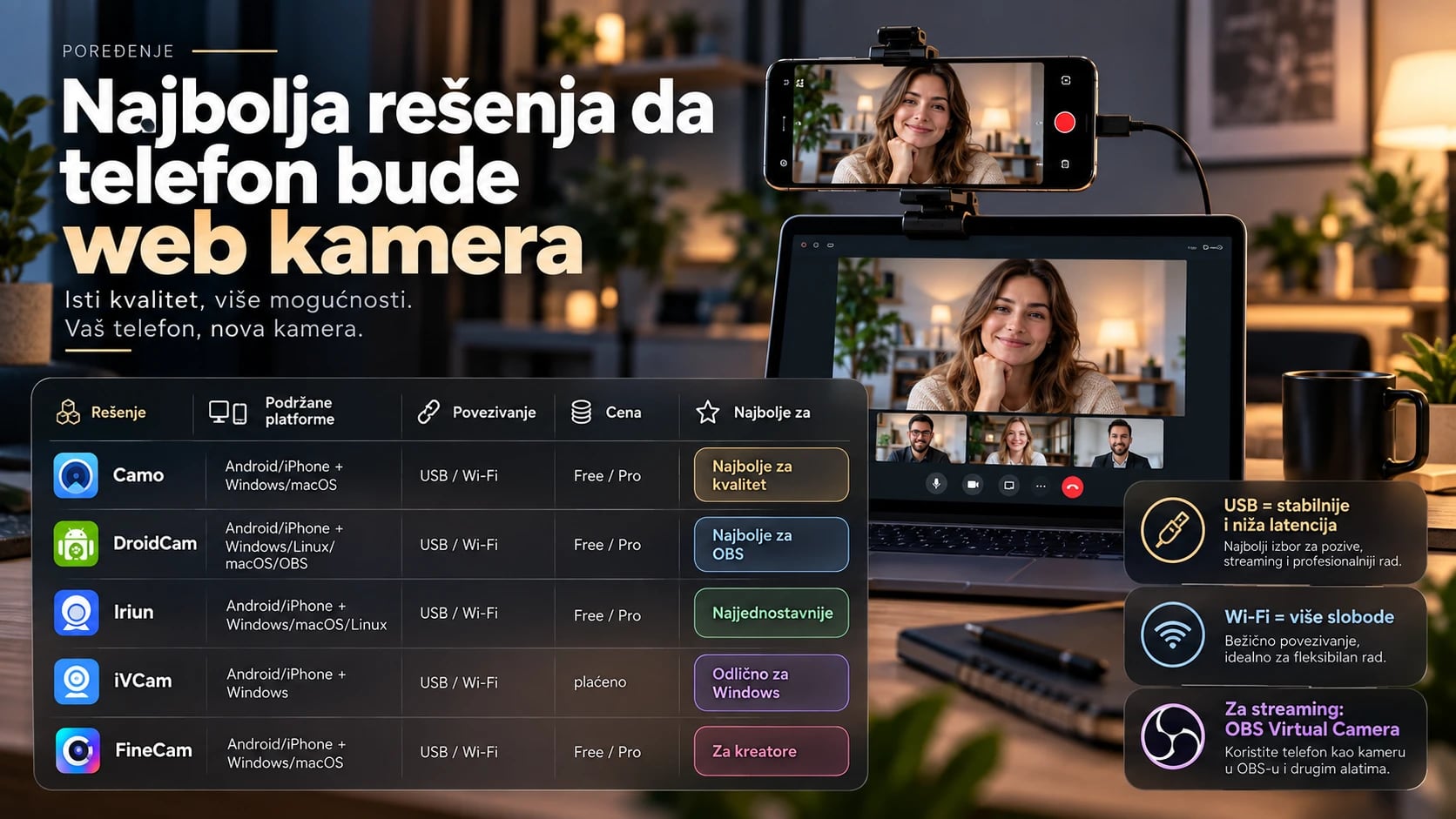
| Option | Phone | Computer | USB | Wi-Fi | Free | Paid | Best for |
|---|---|---|---|---|---|---|---|
| Windows Connected Camera | Android | Windows 11 | No, wireless | Yes | Yes | No | simplest Windows option |
| Android USB Webcam (UVC) | Android | Windows, macOS, Linux, ChromeOS | Yes | No | Yes | No | stability and low latency |
| Continuity Camera | iPhone | macOS | Yes | Yes | Yes | No | the Apple ecosystem |
| Camo | Android, iPhone | Windows, macOS | Yes | Yes | Yes, up to 720p | Pro | image quality and controls |
| DroidCam | Android, iPhone | Windows, Linux, macOS through OBS plugin | Yes | Yes | Yes, SD | Pro | OBS and Linux |
| Iriun | Android, iPhone | Windows, macOS, Linux | Yes | Yes | Yes | Pro | simplicity |
| iVCam | Android, iPhone | Windows | Yes | Yes | Limited, with watermark | Yes | Windows |
| FineCam | Android, iPhone | Windows, macOS | Yes | Yes | Limited, 720p with watermark | Pro | creators and effects |
| NDI Camera | Android, iPhone | NDI-compatible systems, OBS with DistroAV | No, network only | Yes | No, NDI Tools for computers are free | Yes | multicamera setups and production |
Image note: The image above lists macOS for DroidCam. The desktop webcam client is available only for Windows and Linux. On macOS, DroidCam works through the OBS plugin.
Price note: All prices and subscription models listed here are approximate and were checked in October 2026. Providers may change them, and prices can vary by region and store. Always check the official website before buying.
USB or Wi-Fi
| Feature | USB | Wi-Fi |
|---|---|---|
| Latency | lower | higher |
| Stability | excellent | depends on the network |
| Quality | more stable bitrate | can vary |
| Battery | the phone often charges | uses battery power |
| Mobility | limited by the cable | excellent |
| Interference | minimal | possible |
| Setup | cable, driver, permissions | same network, firewall |
Recommendation:
- Choose USB for interviews, business meetings, streaming, and long sessions. The image does not depend on the network, and the phone charges while connected.
- Choose Wi-Fi for quick, occasional calls. There is no cable, and you can place the phone wherever it suits you.
Rear or front camera
The main rear camera almost always produces a better image. It has a larger sensor, better optics, and performs better in low light. The front camera is more convenient because you can see the phone screen and check the framing straight away.
Recommendations:
- Use the rear camera for the best quality in meetings, interviews, recordings, and streams.
- Use the front camera for the simplest everyday calls.
- When using the rear camera, check the preview on your computer in the video app or desktop client, since you cannot see the phone screen.
How to position your phone
Camera placement affects how you come across more than you might think. Follow these guidelines:
- Place the camera at eye level. Avoid angles that are too low or too high.
- Do not film from below. A view from under the chin is the least flattering angle.
- Position the phone horizontally for most calls and videos because Zoom, Teams, and Meet are designed for a widescreen image.
- Keep the lens roughly level with your eyes. Place the phone above or right next to the part of the screen you look at.
- Start at a distance of about 60 to 100 cm.
- Leave a little space above your head instead of cropping the top of the frame.
- Avoid the ultra-wide lens unless the room is small or you deliberately want a wider shot, since it distorts faces near the edges.
Useful accessories:
- a monitor clamp mount
- a small tripod with a phone holder
- a MagSafe mount for compatible iPhones
- a universal phone holder
Lighting
Lighting often affects image quality more than resolution. A phone recording in 4K in a dark room will look worse than one recording in 1080p with good lighting.
Simple rules:
- Face a window. Natural light from the front is free and flattering.
- Avoid a bright window directly behind you. The camera will expose for the window and leave your face in shadow.
- A small LED light or ring light in front of you and slightly above eye level solves most lighting problems.
- Use soft, diffused light. A strong direct bulb creates harsh shadows. Light reflected off a wall or softened by a diffuser looks more natural.
Microphone
Your phone can provide the video while another device handles the sound. You can use:
- your laptop microphone
- a USB microphone
- a headset
- Bluetooth headphones
- the phone microphone, if the solution you use supports it
You choose the camera and microphone separately in a calling app, so make sure you select the right microphone.
Best choice: Use a dedicated microphone or quality headphones with a microphone for an important meeting. Good video cannot make up for poor audio. People will forgive a soft image more readily than sound they cannot understand.
If you need tools for editing and recording audio, see our complete audio guide.
720p, 1080p, and 4K
- 720p is enough for most video calls.
- 1080p is the ideal balance between image quality and bandwidth use.
- 4K is more useful for recording, cropping the frame in post-production, and professional production than for an ordinary Zoom or Meet call.
Important: Video conferencing apps limit the outgoing resolution themselves, regardless of the source quality. Even if your phone sends a 4K image, people on the call will usually see it in 720p or 1080p, depending on the app, plan, and internet speed. For calls, set the camera to 1080p and save 4K for OBS and recording.
30 fps or 60 fps
- 30 fps is enough for video calls.
- 60 fps is useful for movement, live presentations, streaming, and recording.
- 60 fps makes the phone run hotter and uses more bandwidth and power.
1080p at 30 fps is the best choice for most people.
Privacy and security
A phone used as a camera can access the view of your room and often your local network. Take these precautions:
- Install apps only from official stores such as Google Play, the App Store, or Microsoft Store, or from the manufacturers' official websites listed in this guide.
- Check camera, microphone, and local network permissions, and do not give an app more access than it needs.
- Do not expose unnecessary ports to the internet. Webcam apps work on your local network and should not be accessible from outside it.
- Use USB on public Wi-Fi. In a cafe, hotel, or university, do not send video over a shared network.
- Keep the desktop client and mobile app up to date.
- Close the webcam app when you are not using it, both on your phone and computer.
Troubleshooting
The phone does not appear as a camera
- Restart the webcam app on your phone and computer.
- Restart both devices.
- Check camera permissions on your phone and in the operating system.
- Check that the phone is connected correctly through Wi-Fi or USB, including pairing and Trust This Computer on iPhone.
- Make sure the USB cable transfers data and does not only charge the phone.
- Try a different USB port and avoid USB hubs.
- Check that the desktop driver or client is installed and up to date.
Wi-Fi connection does not work
- Both devices must be on the same network, not on the main and guest networks.
- Turn off guest isolation or AP isolation on the router. These settings prevent devices from communicating with one another.
- Check Windows Firewall and allow the webcam client to access the private network.
- Temporarily test without a VPN on either device.
- Avoid corporate and university networks that block communication between local devices.
Video is delayed or stutters
- Switch to a USB connection.
- Switch to 5 GHz or 6 GHz Wi-Fi.
- Move closer to the router.
- Lower the resolution to 1080p or 720p.
- Close other apps that use the camera or network.
The phone overheats
- Lower the settings from 4K at 60 fps to 1080p at 30 fps.
- Remove a thick phone case.
- Avoid charging at maximum speed unless necessary.
- Lower the phone screen brightness or dim the screen if the app allows it.
- Use a USB connection with a stable power supply.
- Take breaks during long sessions.
Zoom, Meet, or Teams shows a black screen
- Check whether another app is already using the camera. By default, Windows allows only one program to use the same camera at a time.
- If you need to use the same camera in two apps at once, for example OBS and Teams, Windows 11 24H2 has an option added in the March 2025 update: Settings > Bluetooth & devices > Cameras > select the camera > Advanced camera settings > Allow multiple apps to use camera at the same time. Enable it separately for each camera. When this option is on, image settings can only be changed through Windows camera settings.
- Check camera permissions in the operating system. On Windows, open Settings > Privacy & security > Camera. On macOS, open System Settings > Privacy & Security > Camera.
- In your browser, check whether the website, such as Google Meet, has permission to use the camera.
- Close OBS, Camo, or DroidCam and restart them in order: first the phone app, then the desktop client, and finally the calling app.
The image is mirrored
Zoom, Teams, and other apps usually show your own image as a mirror, while other participants see it correctly. If the mirrored preview bothers you, turn off Mirror my video in the video settings. Text you hold up to the camera will still be readable to other people.
The best option for each situation
Best completely free options: Android + Windows 11 Connected Camera, native Android UVC when available, and iPhone + Mac Continuity Camera.
Best all-round option: Camo works with Android and iPhone on Windows and macOS, and gives you extensive image controls.
Best for Linux: DroidCam or Iriun.
Best for OBS: DroidCam OBS + OBS Virtual Camera.
Simplest third-party option: Iriun, since it usually connects automatically.
Most controls on Windows: iVCam or Camo.
Best for creators and effects: FineCam.
Best for multicamera and network production: NDI + OBS.
A quick recommendation for beginners
Follow these steps in order and stop at the first one that fits your situation:
- Do you have Android + Windows 11? Try the built-in Microsoft option in section 2.
- Does your phone have a USB "Webcam" option? Use it, as described in section 3.
- Do you have an iPhone + Mac? Use Continuity Camera in section 4.
- Do you need an all-purpose option for Android or iPhone? Try Camo in section 6.
- Do you need Linux support or OBS? Use DroidCam or Iriun in sections 7 and 8.
- Do you need scenes and effects? Try FineCam or OBS in sections 10 and 12.
FAQ: Frequently asked questions
Can a phone replace a regular webcam?
Yes. A modern phone, especially its main rear camera, produces a better image than most laptop cameras and many inexpensive USB webcams. With a good mount and lighting, a phone is a fully capable replacement.
Do I need a USB cable?
No. Most options also work over Wi-Fi. USB is still recommended for longer and more important calls because it is more stable, has lower latency, and charges the phone while it is in use. Native Android UVC works only over USB.
Can I use a phone as a webcam over Wi-Fi?
Yes. Windows Connected Camera, Continuity Camera, Camo, DroidCam, Iriun, iVCam, and FineCam work over Wi-Fi. The phone and computer must be on the same network, and the router must allow devices to communicate with each other.
Can I use Android without an additional app?
Yes, in two ways: through the built-in Windows 11 option with Link to Windows, which is already installed on some phones, or through the native USB Webcam (UVC) mode. UVC is not available on every phone because support depends on the Android version and device manufacturer.
Can I use an iPhone without an additional app on Windows?
No. Apple does not provide a built-in way to use an iPhone as a webcam on Windows. You need a third-party app such as Camo, DroidCam, Iriun, iVCam, or FineCam.
Does Continuity Camera work on Windows?
No. Continuity Camera is an Apple ecosystem feature and works only with an iPhone and a Mac.
Which app is best for Linux?
DroidCam and Iriun have official Linux clients. If your Android phone supports native USB Webcam mode, Linux recognizes it as a standard camera without any app.
Which app is best for OBS?
DroidCam OBS integrates directly with OBS through its plugin. Camo, Iriun, and NDI also work well as OBS sources. OBS Virtual Camera can then send the scene to Zoom, Meet, or Teams.
Does 4K work in Zoom or Teams?
Your phone can send a 4K image, but video conferencing apps limit the outgoing resolution, so other participants usually see 720p or 1080p. 4K is useful for recording and OBS production.
Which has lower latency, USB or Wi-Fi?
USB. A wired connection has less delay and a more stable data rate than Wi-Fi.
Does the phone charge while it is used as a camera?
It usually charges over USB, although demanding settings such as 4K at 60 fps can use power faster than the phone charges. It does not charge over Wi-Fi unless you connect a charger separately.
Can I use the phone's rear camera?
Yes, and it is recommended for the best quality. Most options let you choose the camera, and Continuity Camera uses the rear camera by default. Check the framing in the preview on your computer.
Can the phone be the camera and microphone at the same time?
Yes, if the option you use supports it. Continuity Camera and some third-party apps can also use the phone microphone. For important meetings, a dedicated microphone or quality headphones are still a better choice.
Why does the phone not appear in the camera list?
Common causes include a cable that only charges, missing permissions, a desktop client that is not installed or is out of date, devices on different networks, or another app already using the camera. See the troubleshooting section for detailed steps.
Are these apps safe to use?
They are safe when you install them from official stores or websites, check permissions, keep them up to date, and close them when they are not in use. Use USB instead of Wi-Fi on public networks.
Conclusion
A phone is now one of the easiest and least expensive ways to improve your image on video calls. Keep these recommendations in mind:
- Use a built-in system option first when one is available: Windows Connected Camera, Android UVC, or Continuity Camera.
- USB is best for stability, while Wi-Fi is more convenient.
- Camo is a good all-round option for Android and iPhone on Windows and macOS.
- DroidCam and Iriun are excellent when you need broad compatibility or Linux support.
- OBS Virtual Camera adds advanced options for streaming, presentations, and polished video calls.
With the phone positioned well, light facing you, and a separate microphone, even the simplest setup can deliver a better result than most built-in laptop cameras.
Related guides:
- 70 useful ways to repurpose an old Android device
- 200 digital tips everyone should know in 2026
- Complete Audio Guide 2026
Official sources:
- Microsoft Support: Use your mobile device's camera
- Microsoft Support: Manage mobile devices in Windows
- Android Open Source Project: Use a device as a webcam
- Apple Support: Continuity Camera
- Apple Support: video effects on Mac
- Camo and Camo pricing
- DroidCam, Linux guide, and DroidCam Pro
- Iriun Webcam
- iVCam (E2ESOFT)
- FineCam (FineShare) and FineCam pricing
- NDI Tools and NDI Camera
- OBS Project: Virtual Camera Guide
Complete Audio Guide 2026: 1,000+ Services for Music, Streaming, Radio, Podcasts, and Production
A complete guide and catalog of more than 1,000 audio services, web tools, and programs for music, radio, podcasts, audio editing, DAW production, sample libraries, metadata, and lyrics.

60 Practical Prompts for Local AI Agents: From Disk Cleanup to a Well-Organized Computer
A practical collection of 60 prompts for local AI agents, covering disk analysis, file organization, backups, development environments, security, and automation.

Google AI Studio 2026: How to Use Gemini Models for Free and Build AI Apps
Google AI Studio lets you experiment with much of the Google AI ecosystem for free. This guide covers Gemini models, multimodal workflows, the API, content generation, grounding, code execution, and building AI apps.
How to Find Clients and Build a Premium AI Website Demo in 20 Minutes: Claude Opus 5.5, 3D, and 15 Prompts
A practical guide to researching local businesses, building an AI-assisted website demo, and using 15 prompts for different industries.
80+ Practical Ways to Repurpose an Android Device: Server, Modem, Camera, GPS, SMS Gateway, Watchdog, and More
Explore 80+ practical ways to repurpose Android devices, from Linux servers, 4G/5G backup, and SMS gateways to IP cameras, GPS tracking, Home Assistant sensors, and hardware tools, mostly without root.

Downloading Files in 2026: Download Managers, Torrents, P2P, Usenet, and Tools
A practical guide to download managers, torrents, P2P, Usenet, debrid services, direct download sources, and tools for checking file safety.
Share your thoughts, questions, or tips about this article.