Google AI Studio lets you experiment with much of the Google AI ecosystem for free. This guide covers Gemini models, multimodal workflows, the API, content generation, grounding, code execution, and building AI apps.

AI guide for 2026 · Updated: October 6, 2026.
Google AI Studio is Google's environment for trying Gemini models, prompts, and development features. You can chat with a model, add supported file types, configure instructions and parameters, try tools, and move some of your configuration into an application through the Gemini API.
Its main advantage is that you can start experimenting without a conventional monthly subscription. However, free access to the interface, the Gemini API Free Tier, and the API Paid Tier are not the same thing. Availability depends on the model, account, and feature, and the free API tier has quotas.
Important: Google AI Studio provides free access to many AI features, but “free” does not mean that every model, API call, and generation is unlimited. Google uses a Free Tier and Paid Tier system, and quotas and availability depend on the model.
In brief: open Google AI Studio, choose a task, add the context you need, and describe the result clearly. Before using it for work, check the current features, quotas, and data processing rules.
What is Google AI Studio?
Google AI Studio is an experimental and development environment where you can try Gemini models and different ways of working with them. Instead of only providing a ready-made chat, it gives you a workspace for prompts, system instructions, settings, and testing features that may be available for the selected model.
Depending on the current offering and selected model, your work may include text, documents, images, audio, video, structured responses, search as an additional source, code execution, and calls to application functions. The same interface also serves developers who want to test an idea before connecting it to the Gemini API.
AI Studio therefore has two roles. For a beginner, it is an advanced lab for chatting with a model and working with content. For a developer, it is a place to prototype, configure behavior, and learn about the API workflow.
AI Studio is different from the regular Gemini app
The Gemini app is a finished product for everyday conversations and tasks. AI Studio is a workspace where you can configure a test in more detail and consider how a model might work in your process or application.
| Gemini app | Google AI Studio |
|---|---|
| Chat for end users | Playground and development environment |
| Simpler interface | More control over the model and test |
| Focused on everyday tasks | Focused on experimentation and implementation |
| Fewer technical settings | Run settings and developer options where available |
| Finished product | Testing behavior and API workflows |
| Standard conversation | System Instructions |
| Limited developer workflow | Get Code to move a test into code |
| Not primarily an API tool | Connected to the Gemini API ecosystem |
| More accessible to beginners | More flexible for advanced work |
The short version is: the Gemini app is a finished product, and AI Studio is a lab. Use chat for a simple question. Open AI Studio when you want to change instructions, test an output format, or try a prototype.
How to open Google AI Studio
For your first attempt, you need a browser and a Google account. Button names and page layout may change, so follow the interface as it currently appears.
- Open aistudio.google.com.
- Sign in with your Google account.
- Choose a new chat, prompt, or project offered in the interface.
- Select a model that is available for your account and task.
- Add System Instructions if you want rules to apply throughout the session.
- Write a prompt and describe the result you expect.
- Add a PDF, image, audio, or video only if that workflow supports it.
- Review Run settings and change them only when you understand what a setting affects.
- Run the prompt and check the response.
- Add context or refine the request, then repeat the test.
- When you get a result you are happy with, review Get Code if you want to move it into an application.
You do not need to write a program before trying the basic features. API settings become important when you want to call a feature from your own software or automation.
What the interface looks like
The exact layout changes, but in an AI Studio workflow you will usually look for a few functional areas: model selection, the prompt field, a space for system instructions, configuration options, controls for adding supported files, and the response. A developer workflow may also offer an API or generated code.
Before your first test, check three things: which model is selected, which tool is enabled, and what output you are asking for. This helps avoid a common mistake: concluding that a feature does not work when the selected model or mode does not support it.
You do not need to configure every parameter right away. Start with the defaults, change one setting, and compare the results. That makes it easier to tell whether the prompt, model, or setting affected the response.
How to start your first conversation
A good first test should be small and easy to verify. For example, ask the model to reorganize a short text, explain a paragraph, or extract three facts from a document you are allowed to share.
In the prompt, specify the goal, context, constraints, and desired output format. Instead of “Look at this,” write: “Summarize the attached text in five bullet points, preserve dates, and clearly mark anything the text does not explicitly confirm.”
Read the response and compare it with the source material. Then refine your prompt: “Now extract only the deadlines into a table,” or “Explain the third point in beginner-friendly language.” Iteration is a normal part of the work, not a sign that the first prompt has to cover everything.
How to choose a model
Start with the task, not the model name. Model offerings and availability change, so it is safer to choose a suitable family based on speed, complexity, and input type than to memorize one specific model.
| Task type | What to look for | What to check |
|---|---|---|
| Fast everyday work | A fast model from the Flash family | Quality on your specific example |
| Complex analysis or code | A more advanced model from the Pro family | Availability, speed, and usage cost |
| Simple task at higher volume | A lighter model from the Lite family, if offered | Whether its reliability meets your needs |
| Image, video, audio, or speech | A model that supports the required media | Format, quotas, and account availability |
Create a small comparison test using the same input. Rate accuracy, clarity, response time, cost, and how much manual review is needed. The largest or most expensive model is not automatically the best choice for every task.
How to use System Instructions
System Instructions are rules that guide a model's behavior throughout a session. They are useful when you want the model to keep answering in a particular language, follow a format, or apply the same criteria to multiple requests.
For example:
Answer in Serbian using the Latin alphabet.
Act as a senior software architect.
Before each recommendation, check security, performance, accessibility, and maintainability.
Do not change existing functionality without a good reason.
When you are unsure about a fact, state the limitation instead of making one up.
Keep three layers distinct. System Instructions are persistent rules for the session. A User Prompt is the specific task you are asking for now. Context is the material the model is working with, such as a document, image, or earlier data.
Instructions do not replace checking the response. If the rules are too long or contradict one another, the result may become unclear. Keep them focused on the behavior you actually need.
How to write a strong prompt
A strong prompt describes what to do, what to work on, which constraints to follow, and how to present the result. A short, useful formula is:
Role + goal + context + constraints + output format + quality criteria.
For example:
ROLE:
Act as a UX audit specialist.

GOAL:
Analyze the existing screen.

CONTEXT:
The application is intended for users over 50.

CONSTRAINTS:
Do not change the existing branding.

OUTPUT:
A table with the problem, severity, reason, and proposed fix.

CRITERION:
Prioritize problems that prevent users from completing the main workflow.
Specifying the output is especially useful when a person or software will process the result in a later step. Ask for a table, JSON, a list of steps, a summary of a particular length, or a source for each claim.
Working with PDF documents
If the selected model and workflow support documents, you can attach a PDF and request a summary, extraction of facts, dates, deadlines, people, organizations, and amounts, table analysis, chapter comparisons, contradiction checks, FAQs, a report, or structured output.
For important conclusions, ask the model to show where they came from. With a scanned document, check that the text is readable, that tables were interpreted correctly, and that pages or footnotes were not missed. A model can overlook content, so verify the results in the PDF.

Example of a detailed prompt:
Analyze the attached PDF in detail.

1. Identify the document structure.
2. List its main sections.
3. Extract the key facts.
4. Extract all dates, deadlines, amounts, people, and organizations.
5. Find possible contradictions.
6. Do not invent information that is not in the document.
7. For each important conclusion, cite the part of the document it comes from.
8. Write a short executive summary.
9. Finish with a table of the most important details.
For serious analysis, it is much better to define what you want to find than to write only “analyze the PDF.” If the document is sensitive, read the privacy section before uploading it. For an overview of AI tools working with many file types, see the guide to AI agents for files.
Working with images
A multimodal model can process an image alongside a text question when that feature is available. You can ask it to describe a scene, compare two images, read visible text, identify interface elements, or analyze a chart.
Tell the model what to focus on. For an application screenshot, ask it to separate what it can actually see from assumptions about the underlying code. For a chart, ask it to report the values it read and verify them against the source data.
If you use an image generation or editing feature, availability depends on the model, account, and current quotas. Do not assume every option is available to every user.
Working with audio files
In a supported audio workflow, you can ask for a transcript, a conversation summary, a list of topics, decisions and action items, or identification of important moments in a recording. Quality depends on speech clarity, background noise, language, and how the selected model handles audio.
Example prompt:
Transcribe this conversation, separate speakers where possible, and extract decisions, action items, deadlines, and open questions. Do not fill in parts you cannot understand. Mark unclear passages for manual review.
Check names, numbers, deadlines, and negations. A mistake in one word can change the meaning of an agreement, even when the rest of the transcript seems convincing.
Working with video
Separate two different tasks when working with video:
- Analyzing an existing video: a summary, timeline, topics, or suggested interesting segments.
- Generating a new video: creating new visual material, if the relevant feature is available.
Example prompt for analysis:
Analyze this video. Create a timeline of the main topics, extract key claims, provide approximate timestamps, and suggest segments that could become short clips. Treat the timestamps as estimates until I check them in an editor.
Analysis and generation are not the same capability. Video generation may have separate quotas, conditions, and supported models. Do not describe it as unlimited or free.
Multimodal prompts
A multimodal prompt combines text with one or more types of content. It might pair text with an image, a PDF with a question, audio with a request for meeting notes, video with a timeline, or multiple documents for comparison.
Example for an interface:
Here is an application screenshot and the existing frontend code. Analyze the visual issues, compare them with the code, and suggest specific changes. Clearly separate what is visible in the image from conclusions based on the code.

Another example:
Analyze this video. Create a timeline, identify the main topics, find segments that could become Shorts clips, and suggest titles.
When working with multiple files, label each one and explain its role. For example: “Document A is a quote, and document B is a specification. Compare the sections about deadlines and price.”
Large context and more content
Models differ in how much context they can process. Specific limits depend on the model and its current configuration, so do not apply a number from one model to all the others.
Large context is useful for longer documents, multiple files, and comparisons across larger sections, but it does not guarantee that every detail will be found. Say exactly what to look for, ask the model to tie conclusions to the source, and verify critical details.
If the material is too large or the result is imprecise, divide the work: first review the structure, then extract relevant sections, and finally check the conclusion against the source file.
Generating and editing images
The Google AI ecosystem includes image generation and editing features, but they are not necessarily available in every model, account, or mode. Check availability in the current interface before planning a production workflow around a particular capability.
Depending on the currently available model and your account, a workflow may include image descriptions, generation from text, changing individual elements, variations, background changes, or iterative editing through a conversation. Clearly state what should change and what must stay the same.
For every generated image, check the details, text inside the image, usage rights, and whether the result fits its context. If precise typography matters, it is often safer to add the text later in a design tool.
Video generation where available
Video generation is a separate workflow and should not be confused with analyzing a video you have already uploaded. If the option is available, check which model powers it, what inputs it accepts, and which restrictions apply to your account.
Availability and quotas may depend on the model and terms of use. Check current information in the AI Studio interface and Google's policies before starting. Do not base a production plan on an assumption that every generation is free or unrestricted.
Voice, TTS, and real-time conversation
When the relevant tools are available, the Google AI ecosystem may offer voice workflows, text-to-speech, audio analysis, or real-time conversation experiences. The exact feature set depends on the specific model and product.
Use a short example to try it. Check name pronunciation, language, pauses, and sound quality. In a live conversation, also consider the privacy of people in the room, since recording or sending speech may include information that was not meant to be shared.
Google Search Grounding
Grounding adds an external source of context to a model's response. When Search grounding is available and enabled, the model can use search results alongside its existing context. This is useful for news, prices, changing documentation, products, events, companies, and new software features.
A model without grounding relies mainly on its existing knowledge and the content you provided. A model with Search grounding may include recent results, but you should still read the sources and check that they actually support the conclusion.
For current information, ask for the date and source, and for a distinction between a confirmed fact and an estimate. Grounding reduces reliance on outdated knowledge, but it does not make every response automatically correct.
Code Execution
When code execution is available in the selected workflow, the model can calculate instead of guessing a numerical result. This helps with math, statistics, datasets, transformations, algorithm checks, and table generation.
Example prompt:
Use code execution for every numerical calculation. Do not estimate the result from memory. Show the final result, the method used, and assumptions that affect the calculation.
Check the input values and formula. Executed code can accurately calculate a poorly defined task, so compare the result with the relevant business rules.
Structured Output
Structured Output asks the model to return data in an agreed format, such as JSON. This is useful when the next step in your software needs to parse the result rather than display it as a paragraph.
Example record:
{
  "vendor": "Example LLC",
  "date": "2026-10-06",
  "amount": 12450,
  "currency": "RSD"
}
Possible uses include invoice parsing, extracting information from resumes, products, forms, classification, databases, and automation. Free text is convenient for a person; structured output is more useful to software.
Validate the JSON against a schema in your application. Even when the format looks correct, check that required fields are present and the values make sense.
Function Calling
Function Calling lets a model choose an application function to call and prepare its parameters. This does not automatically give the model permission to perform any business action. Your application controls what actually runs.
For example, in response to “Find the latest invoice for Marko LLC,” the model might propose calls such as getCustomer(), findInvoices(), and returnLatestInvoice(). The backend checks the parameters and permissions before accessing data.
For actions that change or delete data, ask the user to confirm. Limit the available functions, validate inputs, and log completed operations.
API key
An API key is a secret value that an application uses to authenticate requests to the Gemini API. In the AI Studio environment, you can find the API access and key area among the options currently available for your account.
Treat the key like a password. If it reaches a public repository or browser code, someone else may try to use it. If it is exposed, follow the available key management options and replace or revoke the compromised key.
Security warning: Never put a Gemini API key directly in public frontend code, a public GitHub repository, or a file users can download. Use environment variables, server-side secrets, a backend, and appropriate secret management.
Get Code
Get Code connects an experiment in the interface to an implementation. The basic workflow looks like this:
Prompt → configuration → testing → result → Get Code → implementation.
First configure the behavior and check that it suits the task. Then review the generated code, selected model, request method, and response handling. Add required secrets through the server environment, never through a public frontend.
Get Code is a starting point for development, not confirmation that the code is production-ready. Review library versions, error handling, input validation, costs, and security before launch.
Gemini API
AI Studio is a place to experiment, while the Gemini API is a way to call Gemini features from your software. The API can be part of a web or mobile app, backend service, chatbot, document analyzer, internal tool, automation, SaaS product, or agent.
An API call usually sends input to a model and processes the response in your application. Your software determines who may make the request, which data it sends, what it displays, and what happens next. The starting point for Google AI documentation is Google AI for Developers.
Before implementation, decide which data leaves your system, how you will store secrets, and how you will track usage. The same feature may have different access and cost rules when used through the API.
Free Tier
The Free Tier is a free Gemini API tier with restrictions. It is useful for learning the API, prototyping, and smaller experiments when the specific model and feature have a free quota available.
Free use of the AI Studio interface and the API Free Tier are not the same. Do not assume every call from the interface, every model, or every generation follows the same rules as the API.
| Area | Free Tier |
|---|---|
| Experimentation | Available under the offered terms |
| API access | Possible, subject to limits and model availability |
| Rate limits | Restricted and model-dependent |
| Model availability | Depends on the model, account, and terms |
| Production scaling | Check whether the available limits are sufficient |
| Cost | No charge within the currently available quota |
| Privacy and data | Check current processing terms |
Do not infer API billing from the fact that the interface let you run a test.
Paid Tier
The Paid Tier is an API tier where usage is billed under the applicable rules and price list. It may be suitable when the required capacity or limits exceed the Free Tier, but specific terms depend on the model, project, and current billing.
Before enabling paid usage, review current prices, billing terms, and restrictions. Set budget controls available to your project, track actual usage, and test the application at a low volume.
| Area | Paid Tier |
|---|---|
| Experimentation | Available under account terms |
| API access | Availability and price depend on the selected model |
| Rate limits | May be higher, but specific limits still apply |
| Model availability | May be broader; check the model and region |
| Production scaling | More suitable once limits and terms are confirmed |
| Cost | Usage billed according to the current price list |
| Privacy and data | Check applicable terms and business obligations |
Changing tiers does not remove the need to test the application and monitor costs.
Rate limits and quotas
Quotas limit how many requests or resources you can use in a given period. They differ between models and tiers and may change. For that reason, this guide does not list numerical limits that could become outdated.
If a request fails, check whether the cause is a limit, a temporary error, an unavailable model, or an invalid request. Reduce unnecessary calls, wait if the limit is temporary, and retry according to the rules of your API workflow.
For an application, monitor API responses, log errors without sensitive data, and add restrictions that protect your budget. Do not resend the same dataset without a reason.
Privacy and confidential data
Before sending a file or text, consider whether you really need to share the entire material. Do not casually send:
- passwords or private API keys
- a complete customer database
- confidential business documents
- health information
- financial data
- other people's data that is not needed for the task
Before using the service for work, check the current Google terms and data processing policies for the specific product and usage tier. Distinguish between account, API project, and organizational rules. If you are not sure whether you may share a document, ask the responsible person for guidance first.
AI Studio Build
If a Build experience appears in your AI Studio account, you can describe the application you want to prototype and then iterate based on the result. Availability and exact capabilities depend on the current interface version.
Describe the user, goal, main workflows, layout, and quality criteria. Then check what was actually built: whether the buttons work, data is saved as expected, and the interface is usable on a phone.
Treat the generated result as a prototype until you review its code and behavior. Do not assume every project has the same export, hosting, or external service connections.
Building web apps
Instead of an unclear request such as “Write a React component,” describe the product and user workflow:
Build a modern, responsive web app for tracking household expenses.

Goals:
- easy expense entry
- categories
- monthly overview
- search
- filtering
- charts
- mobile-first layout

Technical requirements:
- clear component structure
- input validation
- accessibility
- loading and error states
- responsive design
- do not expose secret keys in frontend code

Before implementation:
1. write a short plan
2. identify the required components
3. then implement
4. check the main workflows after the change
An agent workflow may change several related areas, such as the interface and logic, and then iterate on the result. Review every change in the context of the whole application.
Working with existing projects
If the interface for your account offers work with an existing project, check which files can actually be opened, edited, and saved. Capabilities are not identical in every environment, so do not assume AI Studio can directly manage an entire repository.
When direct connection is not available, you can explain the project structure, provide relevant files through a supported workflow, or move an experiment from AI Studio using code that you review. Before making changes, ask the model to identify relevant files and propose a plan.
Save the original version, review the diff, and check key features after every major change. Do not accept a change just because the interface appears to render at first glance.
GitHub workflow where supported
Do not assume every AI Studio project has a direct GitHub connection. If your account shows an integration or export, check exactly what it syncs and which permissions it requests.
In a typical Git workflow, keep the code in a private or appropriately protected repository, work on a separate branch, review the diff, and run the project's checks. Store the API key as an environment secret, not in the code.
When downloading generated code, review every file, dependency, configuration, and license term before merging it into an existing project.
When to use Flash models
Consider Flash models when speed and economical processing matter, for example for everyday questions, summaries, extraction, and classification. They can also suit tests of many simpler inputs when their quality meets your goal.
Before deciding, run a small evaluation on a representative sample. Check errors, usage costs, the need for human review, and performance on harder examples.
When to use Pro models
More advanced Pro models may be candidates for complex reasoning, programming, architecture, and detailed analysis. This does not guarantee that every response will be better or that a specific model will be available to every account.
Compare them with a faster and less expensive option on the same inputs. Use a more complex model when the quality improvement justifies the additional time or cost.
AI Studio for developers
Developers can use AI Studio to try prompt behavior, check an output format, experiment with available models, and prepare an API integration. Structured responses and Function Calling are especially useful when an application needs to process data or route controlled operations. For broader context on AI development, see the guide to Next.js and AI agents.
Before production, add validation, error handling, access restrictions, logging that excludes secrets, and usage monitoring. Test the result with invalid and unexpected inputs, not only ideal examples.
AI Studio for everyday users
You do not have to be a developer to use AI Studio. You can try a more detailed prompt, explain longer material, ask questions about a supported file, or compare the model's responses to different instructions.
Start with a clear and safe example. If you do not need an API or development controls, the regular Gemini app may be simpler. Choose AI Studio when its extra options are useful for a specific reason.
AI Studio for writers and content creators
For writing and content creation, give the model the audience, goal, format, and source material. You can ask for an article outline, text editing, headline variations, an interview summary, or analysis of supported audio and video content.
Ask the model to separate information from the source from its own suggestions. Check facts, quotes, media rights, and final tone before publishing.
AI Studio for document analysis
Analyze documents with a specific question. For example, for a contract, ask for deadlines, obligations, exceptions, and unclear sections. For a tabular report, ask for periods, categories, totals, and items that need further review.
| Material | Useful task | Human review |
|---|---|---|
| Contract | Extract deadlines, parties, and obligations | Check the wording in the source text |
| Report | Summarize findings and extract figures | Compare figures with the tables |
| Multiple documents | Compare differences and contradictions | Check whether the versions are comparable |
| Form or invoice | Suggest structured data | Confirm every critical field |
A model can speed up a review, but it does not replace responsible professional judgment for legal, financial, or other important decisions.
AI Studio for research
For a research task, define the question, scope, and criteria for accepting evidence. When Search grounding is available, enable it for information that changes quickly and review the sources the model used.
Ask the model to separate confirmed findings, open questions, and estimates. Do not treat a summary as a substitute for reading the original paper or documentation when the decision matters.
AI Studio for automation
AI Studio can help you test a prompt, structured output, or function call before adding it to an automation. First define permitted inputs and actions, then check behavior with empty, invalid, and boundary-case input.
Do not give the model unrestricted access to systems. The application should check authorization, validate parameters, and decide whether user confirmation is required before executing an action.
AI Studio compared with the Gemini app
The Gemini app is a good choice for a quick conversation and everyday tasks. AI Studio makes more sense when you want to try System Instructions, compare models, add a supported input, change available settings, or prepare an API prototype. For everyday prompting techniques, see our guide to using ChatGPT.
Choose the simpler product when you are not using development features. Choose AI Studio when you want more control and can check the results.
AI Studio compared with the direct Gemini API
AI Studio is an experimentation environment. The Gemini API is a programmatic interface that an application uses to send requests to a model.
| Need | AI Studio | Gemini API |
|---|---|---|
| Quickly try a prompt | Convenient in the interface | Requires implementing a request |
| Test available settings | Directly in the offered workflow | In application code |
| Integrate into a product | Not a complete integration by itself | Designed to be called from software |
| Manage secrets | Do not share them in a prompt | Store them on the server side |
| Costs | Check interface and account rules | Monitor API tier and usage |
For many teams, a practical workflow is to test behavior in AI Studio first, move a validated idea into an application, and validate the result again in the real environment.
Best practices
- Start with a clear goal and identify the audience.
- Add only the context the model needs.
- Specify the output format and quality criteria.
- For current data, use available grounding and check the sources.
- For PDFs and other files, name the specific details to find.
- Divide a large task into steps that can be checked.
- Compare models using the same sample.
- Validate JSON and generated code.
- Keep API keys on the server side.
- Read data processing terms before using business information.
- Monitor quotas, errors, and costs.
- Add human review wherever a mistake could have serious consequences.
Common mistakes
- A short prompt without context. The model has to guess what a good answer means.
- Using the largest model for a trivial task. This can add unnecessary time or cost.
- Expecting current information without grounding. Ask for recent sources when you need them.
- Putting an API key in frontend code. This can expose the secret to users.
- Sending confidential data without checking the rules. Review the terms first and minimize the data.
- Assuming the Free Tier means unlimited use. The free tier has quotas.
- Not specifying the output format. Ask for a table, JSON, or another format.
- Leaving out System Instructions when rules repeat. Define them at the session level.
- Sending a large document without a precise question. Say what you want to find.
- Accepting an answer without review. Check important facts against the source.
- Not reviewing generated code. Test it and check for exposed secrets and dependencies.
- Confusing the AI Studio interface with API billing. Check the terms for each workflow separately.
Ten practical prompts
PDF analysis
Analyze this document in detail. Extract key facts, figures, deadlines, people, organizations, possible contradictions, and conclusions. Do not invent information that is not in the document.
Programming
Analyze the existing project before making changes. Identify relevant files, the existing architecture, and possible regressions. Then implement the request with as few unnecessary changes as possible.
Screenshot and UI
Analyze the attached screenshot as a senior UI/UX designer. Find issues with hierarchy, spacing, typography, contrast, responsive behavior, and clarity of actions.
Video
Analyze the video and create a timeline of its topics. Identify the most interesting segments, key claims, and parts suitable for short clips.
Audio
Transcribe the content, then extract decisions, tasks, deadlines, names, and open questions. Mark unclear passages for manual review.
Structured data
Extract data from the attached document using only valid JSON that follows the provided schema. If a value is missing, return null.
Research with grounding
Use available Search grounding. For each claim that depends on current information, cite recent sources and clearly distinguish facts from estimates.
Code analysis
First find the cause of the problem. Do not change the code immediately. After diagnosing it, suggest the smallest safe change and describe possible regressions.
Content
Turn the provided material into a detailed, expert article. Do not add facts the material does not support. Organize it into H2 and H3 sections, tables, and practical examples.
Data analysis
Analyze the data using code execution where available. Do not calculate numerical conclusions from memory. Show the method, result, and limitations of the analysis.
FAQ: frequently asked questions
Is Google AI Studio free?
Much of the AI Studio experience and Gemini API Free Tier can be used without payment, but quotas and restrictions apply, and some models or features may require the Paid Tier. Check the current terms for the specific model and account.
Do I need a Gemini subscription to use AI Studio?
AI Studio and the Gemini API have their own access and billing systems. A regular consumer Gemini subscription is not the same as access to AI Studio or the Gemini API.
Does Google AI Studio support PDFs?
Supported Gemini workflows can analyze documents and provide summaries, data extraction, questions about the document, and other tasks.
Can AI Studio analyze images?
Multimodal Gemini models can combine a text prompt with images and analyze their content when the relevant feature is available.
Can it analyze video?
Compatible multimodal models can work with video content. Exact availability and limits depend on the model.
Can I build an application?
AI Studio can help prototype AI applications, and Gemini features can be connected to your own software through the API. Review and test all generated code.
What is a Gemini API key?
It is a secret key an application uses to authenticate requests to the Gemini API.
Can I put the API key in JavaScript frontend code?
No. Keep secret keys on the server side or in a secure secrets management system.
What is Search grounding?
It is a feature that lets a model use Google Search results as additional, current context.
What is Structured Output?
It is a feature that lets a model return structured data, such as JSON, instead of ordinary free text.
What is Function Calling?
A mechanism that lets a model choose a function for an application to call and prepare its parameters. The application still controls execution.
Is usage unlimited?
No. The Free Tier has rate limits and quotas that depend on the model and may change.
Conclusion
Google AI Studio is more than a place to test a simple prompt. It is an experimental environment for chatting with Gemini models, working with longer documents and multimedia, structured data, grounding, code execution, API prototypes, and AI application development, to the extent that these features are available for the selected account and model.
For many users, an advantage is being able to start experimenting without a monthly subscription. Still, free does not mean unlimited. Check the model, quotas, API terms, and privacy rules before work that matters or will be repeated in production.
If you already use Gemini, it is worth opening AI Studio at least once. The difference between an ordinary conversation with an AI model and a full AI development environment becomes clear within a few minutes.
Related guides
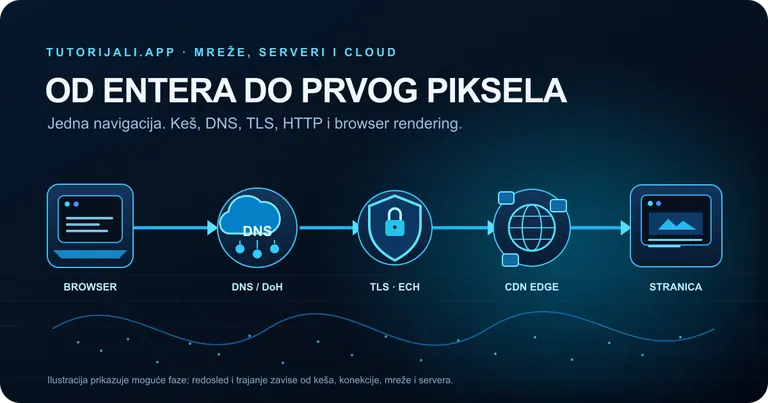
What Happens in the 500 ms After You Type tutorijali.app?
From entering a web address to the first pixel: what DNS, DoH, ECH, QUIC/TLS, HTTP/3, CDNs, and browser rendering actually do, with measurements from tutorijali.app.

Complete Audio Guide 2026: 1,000+ Services for Music, Streaming, Radio, Podcasts, and Production
A complete guide and catalog of more than 1,000 audio services, web tools, and programs for music, radio, podcasts, audio editing, DAW production, sample libraries, metadata, and lyrics.

AI Agents Do More Than Read Files: PDF, CAD, Office, 3D, Images, Audio, and Video in 2026
Compare ChatGPT, Claude, and Gemini for PDF, Office, CAD, audio, and video, with tools and an interactive guide to 95 file formats.

How to Use Your Phone as a Webcam: Android and iPhone Guide for 2026
Turn an Android phone or iPhone into a webcam over USB or Wi-Fi. Compare Windows Connected Camera, Android UVC, Continuity Camera, Camo, DroidCam, Iriun, iVCam, FineCam, NDI, and OBS, with setup steps and troubleshooting.

Google and DeepMind AI Models in 2026: Gemini 3.8, Gemma 4, Veo, Nano Banana, Robotics, Genie, and Alpha Systems
A technical overview of Google and Google DeepMind AI models in 2026, from Gemini 3.8 Flash and Live, Nano Banana 2 and Veo 3.1, to open Gemma 4 models, robotics, and Alpha science systems.

AI Models and Tools in 2026: A Guide to Major AI Services and Models
Explore the 2026 AI ecosystem, from leading models and companies to coding agents, image and video generators, and local AI tools.
Share your thoughts, questions, or tips about this article.