Compare ChatGPT, Claude, and Gemini for PDF, Office, CAD, audio, and video, with tools and an interactive guide to 95 file formats.

AI agents do more than read files: PDF, CAD, Office, 3D, images, audio, and video in 2026
Updated: October 4, 2026.
Until recently, using AI models with files usually meant one thing: you uploaded a PDF or spreadsheet, the model read its contents, and you asked questions.
That is no longer a good description of what AI can do.
Modern AI systems can analyze a file, change its contents, launch a specialized program, generate a script, run it, create a new file, open the result, inspect it visually, and repeat the process if something is wrong.
In other words, we have moved from:
file → AI → text response
to:
file → AI agent → suitable professional tool → edit → verification → finished file
This completely changes how we should think about PDF, Word, Excel, PowerPoint, CAD, BIM, 3D, photography, audio, video, GIS, and practically every other digital format.
The key point: you do not need a separate AI for every format
ChatGPT, Claude, and Gemini can act as central agents. Give one a file and describe the result you want. When the task involves more than reading and writing text, the agent can use built-in features, connectors, a code execution environment, or a specialized application.
ChatGPT: from conversation to finished file
ChatGPT Work can create or edit a document, spreadsheet, presentation, report, or analysis from a prompt, source material, or template. In supported workflows, it can also work with Google Docs, Sheets, and Slides when the relevant Workspace app is connected. There is also an Excel add-in for working directly in an open Excel file. Availability depends on the surface and account settings (OpenAI: ChatGPT Work).
Claude: builds documents through an execution environment
Claude can create DOCX, XLSX, PPTX, and PDF files directly, analyze multiple input files, and use code for calculations or charts. Google Docs, Sheets, and Slides have live editing connectors that are currently in beta (Anthropic: create and edit files, Anthropic: Google Workspace connectors).
Gemini: files and Google Workspace in the same conversation
Gemini Apps can generate supported output files such as PDF, DOCX, XLSX, CSV, LaTeX, TXT, and Markdown. In Google Docs, Sheets, and Slides, Gemini can create or edit content within Workspace apps. Specific features depend on your plan, language, and feature availability (Google: Gemini Apps and files, Google: Gemini in Slides, Google Workspace with Gemini).
With a well-defined prompt, a suitable tool, and final validation, all three can deliver professionally usable results across a wide range of formats. This does not mean every feature is built into every product or that every result is automatically perfect. The advantage is that an agent can route the work through a tool that knows how to process the file correctly.
YOU NO LONGER CHOOSE AN AI BY FILE EXTENSION. YOU CHOOSE AN AGENT, GIVE IT THE FILE, AND CLEARLY DESCRIBE THE RESULT YOU WANT.
| Task | ChatGPT | Claude | Gemini |
|---|---|---|---|
| Read and analyze a PDF | ✅ Analyze attached files | ✅ Analyze attached files | ✅ Analyze attached files |
| Create a PDF | ✅ With a tool or export | ✅ Create directly | ✅ Create directly |
| DOCX documents | ✅ Work | ✅ Create files | ✅ Create files |
| XLSX spreadsheets | ✅ Work or Excel tool | ✅ Create files | ✅ Create files |
| PPTX presentations | ✅ In supported Work workflow | ✅ Create files | ✅ Google Slides, then export |
| Convert between formats | ✅ With a suitable tool | ✅ Code execution | ✅ Supported formats and apps |
| Charts and data analysis | ✅ Analysis and code execution | ✅ Analysis and code execution | ✅ Gemini in Sheets and connected tools |
| Multiple files in one workflow | ✅ | ✅ | ✅ |
| Natural language edits | ✅ | ✅ | ✅ |
| Google Docs, Sheets, and Slides | ✅ With a connected Workspace app | ✅ With Workspace connector; live editing is in beta | ✅ Through Google Workspace |
| CAD and 3D | ✅ With a tool or MCP | ✅ With a tool, API, or MCP | ✅ With a tool or API |
| Audio | ✅ With a supported feature or tool | ✅ With a tool or MCP | ✅ File analysis or tool |
| Video editing | ✅ With a video tool or editor | ✅ With a video tool or editor | ✅ With a video tool or editor |
| Automatic validation | ✅ With code or an app | ✅ With an execution environment or tool | ✅ With code, API, or an app |
✅ means a task can be completed in a supported workflow. CAD, 3D, audio, and video work often requires a separate program, connector, API, or MCP server. Availability depends on plan, version, region, and account settings. PowerPoint is not included in the current desktop Work workflow for ChatGPT. Review the result, especially when data, formulas, layout, or geometry matter.
What does it mean for AI to “work with a file” today?
There is a huge difference between reading a file and actually manipulating it.
AI can do at least six different things:
| Level | Operation | Example |
|---|---|---|
| 1 | Understanding | Explain a contract in PDF form |
| 2 | Extraction | Extract tables from 300 pages |
| 3 | Transformation | Convert a DOCX into a structured PDF |
| 4 | Editing | Change text, images, or formulas |
| 5 | Automation | Process 2,000 files according to rules |
| 6 | Agentic work | Open an application, make changes, verify the result, and fix errors |
The last two levels are why 2026 is much more interesting than previous years.
PDF: one of the most mature AI formats today
PDF is a great example.
ChatGPT supports common documents, including PDF, DOCX, XLSX, CSV, PPTX, and TXT, for analysis, comparison, data extraction, and content transformation (overview of supported file types).
But we can now go much further.
Adobe Acrobat AI Assistant lets you talk to a document, get answers with source references, and work with multiple documents through PDF Spaces. Acrobat also supports editing PDFs with natural language: replacing and rewriting text, reorganizing pages, formatting, annotation, and supported redaction operations. Before applying a change, it shows a preview and requests confirmation for some actions (Adobe documentation on editing PDFs with chat).
That means a request could look like this:
Analyze this contract. Create a copy of the document. Mark all payment deadlines, find contradictory clauses, make a table of both parties' obligations, and generate a one-page summary.
Or:
Remove blank pages, correct the orientation of scanned pages, run OCR, create a bookmark structure based on headings, optimize the file size, and check that the text is searchable after processing.
For scanned documents, combining an AI agent with OCR tools is especially useful. OCRmyPDF, for example, adds a searchable text layer to existing scanned PDFs and supports optimization and PDF/A workflows.
That makes processing thousands of scanned invoices, contracts, archived documents, or technical manuals an excellent task for an agent.
What can AI already do reliably with PDF?
Text extraction, OCR, merging, splitting, page reordering, rotation, document classification, information retrieval, summarization, version comparison, table extraction, file renaming, and conversions are among the most mature workflows.
There are exceptions.
Digitally signed documents, complex forms, JavaScript inside PDFs, special fonts, print precision, and legally significant redactions require additional review.
AI can automate the work.
You should not blindly verify your own document simply because AI created it.
Word, Excel, and PowerPoint: AI is no longer just an assistant on the side
Office formats made a major leap in 2026.
On September 25, 2026, Microsoft announced Office in Copilot, an experience where Copilot can create or update actual, editable Word documents, Excel workbooks, and PowerPoint presentations. The feature is rolling out gradually, so availability depends on the account and environment (Microsoft announcement).
That is an important difference.
In Excel, the interesting question is no longer only:
Which formula should I use?
A much more interesting request is:
Analyze the workbook. Find inconsistent formulas, fix references, create a new Summary sheet, add a pivot table, charts, and data validation, and check that the totals match the source tables.
The same applies to Word:
Keep the document's existing style, but reorganize the chapters, create a table of contents, standardize headings and tables, fix references, and create a PDF version.
And PowerPoint:
Create a 20-slide presentation from these six documents. Keep the existing master, do not change the logo or colors, create charts from the Excel table, and check that no text overflows a slide.
The same rule applies to these features: check availability for your account and plan, then review the result in the document itself before sharing it or treating it as final.
This is one of the areas where I expect manual business document formatting to quickly become the exception rather than the rule.
CSV, XLSX, JSON, XML, YAML, and databases
Structured data is even better suited to AI agents.
The reason is simple: results are relatively easy to verify mathematically.
An agent can clean data, find duplicates, normalize dates, combine multiple files, identify missing values, create SQL migrations, generate charts, find statistical anomalies, transform JSON to CSV, CSV to Parquet, XML to JSON, create a SQLite database, or export results to Excel.
There is another important advantage to an agent-based approach.
The model can write code first, run it on the actual data, check the row count, control totals, and schema, then deliver the result.
That is much more reliable than simply asking it to “look at the spreadsheet.”
CAD: one of the biggest changes in 2026
CAD has long been a boundary between an AI demonstration and serious professional work.
That boundary is now shifting.
Autodesk's October 1, 2026 announcement describes Autodesk Assistant in Fusion and three official MCP servers for working with designs, project data, and cloud sessions (Autodesk announcement).
Fusion MCP works with the local Fusion app and manages the active design. Fusion Data MCP works with cloud data such as projects, folders, and permissions. Fusion Compute MCP launches Fusion sessions in the Autodesk cloud, where an agent can work with CAD, CAM, electronics, assemblies, and file exports. Autodesk announced the public beta of Compute MCP on September 15, 2026 (Fusion Compute MCP details).
Autodesk says beta billing for certain agent actions, using monthly Flex tokens, begins on October 6, 2026. Since this guide was updated on October 4, that change had been announced for the following days.
This is a major change.
We are no longer talking only about an AI that says:
Click Sketch, then Extrude.
We are talking about a system that you can give a goal:
Create a 120 × 80 mm bracket in 6061 aluminum, with four 6 mm mounting holes, a 3 mm fillet, and a version optimized for CNC machining.
The agent can then use the CAD system to create actual geometry.
That is agentic CAD.
Revit and BIM
We see a similar direction in Revit.
Autodesk Assistant in Revit 2027 can answer questions about a model, search for elements, and automate common tasks such as creating a door schedule. Revit 2027 also has a separate Public MCP Server in technical preview, with tools for querying a model, exporting views, and navigating to elements (Revit Assistant, Revit Public MCP Server).
Generative Design is also part of the Revit ecosystem and can generate and evaluate alternatives against specified goals and constraints.
Onshape
Onshape AI Advisor is a contextual assistant based on official Onshape documentation, courses, and other materials. It links answers to sources, but it should not be confused with an agent that autonomously changes complete CAD geometry (Onshape AI Advisor).
That distinction matters.
DWG, DXF, STEP, IGES, STL, and other CAD formats
For agentic work, a large language model does not have to “understand a binary STEP file” by itself.
That is not even the best approach.
A better workflow is:
STEP → CAD engine → structured model → agent → CAD operations → validation → new STEP
The same applies to DWG.
If you want AI to change 500 DWG drawings, the best system is not a model that tries to reconstruct the DWG bytes directly.
Use AutoCAD, the Autodesk API, an appropriate CAD library, or another tool that understands the format. Let the agent decide what should change.
This preserves geometry, layer structure, units, blocks, and other technical data.
Especially important rules for CAD
AI should never make uncontrolled changes to production CAD.
Check units, dimensions, tolerances, constraints, materials, coordinate systems, references, BOMs, and simulation results.
For a part that will actually be manufactured, AI is an excellent operator and assistant.
It is not a replacement for engineering verification.
Blender and 3D: practically ideal for AI agents
Blender has a major advantage: a powerful Python API.
The official bpy Python API provides access to Blender data, objects, operations, geometry, rendering, and other parts of the application. Blender can also be used as a Python module for automation, 3D file conversion, rendering, compositing, and even video processing.
That makes Blender an excellent “execution engine” for an AI agent.
You can say:
Import this model. Find every object without a material. Optimize the mesh for the web. Create LOD0, LOD1, and LOD2. Generate a UV map, render four preview images, and export a GLB.
The model does not have to manipulate the .blend bytes directly.
It generates Python operations.
Blender runs them.
The agent reviews the result.
If it is not good, the agent changes the script and tries again.
This is why many future professional AI systems will actually be a combination of a reasoning model and existing applications.
STL, OBJ, FBX, glTF, GLB, 3MF, and USD
An AI agent is very useful for batch processing 3D assets.
Possible tasks include format conversion, coordinate system changes, scaling, unit changes, polygon count optimization, LOD generation, normal checks, object reorganization, renaming, thumbnail generation, material preparation, and automatic rendering.
For 3D printing, mesh, dimension, and scaling checks are especially useful.
But the same rule applies:
AI defines the goal. A geometry tool performs the operation.
Photos: this is already a practical everyday AI feature
AI is even more mature for photography.
Photoshop offers Generative Fill, Generative Expand, Generate Background, Generative Upscale, and Harmonize. Some features use generative credits or cloud models, so processing and availability depend on the selected tool and plan (overview of Adobe Photoshop AI features).
Realistic tasks include:
Remove the car behind the person, reconstruct the background, expand the photo to 16:9, improve the lighting, and prepare a 1920 px WebP.
Or, in an agent workflow:
Process the whole product folder. Remove backgrounds, center each product, standardize dimensions, create a transparent PNG, a JPEG for the marketplace, and a WebP for the website. Then check that no product is cropped.
This is a great example of generative AI and traditional image processing working together.
SVG and vector graphics
Vector graphics are especially interesting because they represent structured data.
SVG is essentially XML.
That means an LLM can read, change, and generate it directly.
Adobe Illustrator has Text to Vector Graphic, Concept to Vector, Generative Shape Fill, Generative Expand, and Text to Pattern features (overview of Illustrator generative features).
A workflow like this is realistic:
logo PNG → analysis → vectorization → path cleanup → SVG → print PDF → PNG/WebP for the web
An AI agent can then automatically check the viewBox, dimensions, colors, fonts, stroke values, and other parameters.
This is already very powerful for logos, icons, diagrams, labels, and technical graphics.
Audio: transcription is only the beginning
Agent workflows are becoming highly effective in audio as well.
OpenAI recommends gpt-transcribe for transcribing completed recordings. The API supports MP3, MP4, M4A, WAV, and WebM, among other formats, and lets you provide context and expected keywords to the model (official transcription guide).
But after transcription, an agent can do much more.
It can find silences, create chapters, remove filler words, generate SRT and VTT subtitles, translate subtitles, summarize a conversation, extract quotes, or find segments that should be removed from a recording.
Adobe Premiere Enhance Speech uses AI to reduce background noise and improve speech clarity inside an editing project (Adobe guide).
A podcast workflow could therefore look like this:
WAV → audio cleanup → transcription → error correction → chapters → SRT → episode description → short clips → final MP3
One agent can guide the whole process.
Video editing: perhaps the most interesting area right now
AI video is not only about generating video.
For everyday work, AI editing of existing footage is much more interesting.
DaVinci Resolve
DaVinci Resolve 21 adds IntelliSearch for searching footage by people and objects, AI Speech Generator, and other Neural Engine features. IntelliScript can compare a script with transcribed footage and create an initial edit for an editor to refine (Blackmagic Design: Resolve 21).
IntelliScript is especially interesting because it can use ordinary text or a Final Draft document, compare it with transcribed clips, and create an initial timeline. The editor can then review the selections and finish the edit in Resolve.
That means you can ask:
Here is a script and 120 recorded clips. Find the best takes, create a rough cut based on the script, remove empty sections, and prepare a timeline for manual finishing.
That is a huge leap from conventional editing.
Adobe Premiere Pro
Premiere 26.5 added Paper Edit: an editor marks sentences in a transcript, reviews the selection, and builds a new sequence from it. In the same release, Generative Media Tool can add generated video or audio clips directly to a timeline as editable elements. Generative Extend adds extra frames or ambient sound to the beginning or end of a clip. These are specific examples of AI working in an existing editing project, not just generating a separate effect (Premiere 26.5, Paper Edit, Generative Extend).
After Effects
Even more interesting is the After Effects AI Assistant, which is in beta during 2026.
Adobe says the Assistant can organize a project, write or fix expressions, and help generate content. The feature is still in beta (After Effects AI Assistant).
This is practically the beginning of an agentic motion graphics workflow.
Descript
Descript approaches the problem differently.
You edit video and audio almost like a text document.
Change the transcript and the recording changes with it.
Newer features such as Video Regenerate and Smooth Jump Cuts try to reconstruct problematic sections so the cut is less noticeable.
Video Regenerate is a beta feature with restrictions: it is currently intended for footage of one person, works on A-roll, and requires consent for face generation. Smooth Jump Cuts creates a short visual bridge across a cut. Both features target repairs to existing footage, but you should review the result before publishing (Descript: Video Regenerate, explanation of Smooth Jump Cuts).
For interviews, podcasts, educational content, and talking-head video, this can dramatically speed up the work.
Runway
Runway Edit Studio uses prompts to change existing footage: it can remove an object, replace the background, change a shot's appearance, or add a visual element. Official documentation lists input clips up to 30 seconds, while the current Edit Studio description offers Single edit processing. This is an intervention in the source material, but it is not the same as full timeline editing (Runway Edit Studio).
AI video editing is therefore no longer only:
Make me a video from a prompt.
More often it means:
Here is my original video. Change only what I asked for, and preserve the rest of the footage.
That is much more important for professional workflows.
FFmpeg + an AI agent is one of the most powerful combinations
For much of video and audio automation, you do not need a generative video model at all.
You need a good reasoning model and FFmpeg.
FFmpeg supports a large number of formats, codecs, muxers, demuxers, and filters. ffprobe can list machine-readable information about audio and video streams, which makes it easier to verify results (FFmpeg documentation, ffprobe).
You can therefore ask an agent:
Take 200 videos from this folder. Detect the resolution and frame rate of every file. Normalize the audio, create a 1080p H.264 version, a 9:16 vertical preview, a thumbnail at five seconds, and a JSON report. Do not transcode files that already meet the target specification.
The agent can generate FFmpeg commands, run them, use ffprobe to verify the results, and automatically retry failed operations.
That is a real AI automation workflow.
There is no generative magic.
But it is extremely useful.
Subtitles: SRT and VTT are practically ideal for AI
SRT and WebVTT are text formats.
That makes AI good at transcription, translation, proofreading, timing changes, merging short subtitle segments, line breaks, localization, and conversion between formats.
The best workflow is not:
AI reads the file and writes a new SRT from memory.
A better workflow is:
transcription → timestamps → text correction → timestamp validation → render test
This helps avoid overlapping subtitles and invalid timestamps.
GIS, maps, and geographic data
GIS is another area that is often overlooked.
GDAL is one of the main libraries for raster and vector geospatial data. Its official documentation maintains separate lists of raster and vector drivers, and actual support also depends on how GDAL was installed (raster formats, vector formats).
An agent can therefore be asked:
Convert these shapefiles to GeoPackage, reproject everything to EPSG:4326, check for invalid geometries, create a GeoJSON version for the web, and generate a preview map.
AI decides which operations to use.
GDAL performs them.
This is a great architecture because geospatial calculations stay inside a specialized GIS tool.
ZIP, 7Z, TAR, and large archives
Archives are a simple but extremely practical example of agentic work.
An agent can open an archive, inventory its contents, classify files, find duplicates, calculate hashes, extract only certain file types, change the folder structure, and create a new archive.
For backups or large datasets, it can first make a plan, then run operations with deterministic tools, and finally check the file count and checksums.
AI is not the compressor here.
AI is the compressor's operator.
EPUB and e-books
EPUB is also well suited to automation because beneath the surface it mostly consists of structured HTML, CSS, XML, and other resources packaged together.
An agent can therefore correct content, reorganize chapters, generate a table of contents, fix metadata, standardize CSS, optimize images, and validate the result.
The same applies to many other open formats.
The more structured and well documented a format is, the easier agentic work becomes.
HTML, CSS, Markdown, JSON, XML, and source code
This is currently the most natural environment for AI.
The file is text.
The model understands it directly.
The agent can change it.
A compiler, linter, test, or browser can automatically check the result.
That is why software development was one of the first areas where AI agents became truly useful.
The same principle is now spreading to other formats.
The key concept: AI as an orchestrator
The most powerful AI workflow does not look like this:
GPT → finished file
It looks like this:
AI model → plan → tool → result → validator → visual review → correction → final file
For example, the request:
Create a promotional video from this PDF catalog.
could internally become:
PDF → extract text and photos → analyze products → script → generate graphics → TTS → FFmpeg/Premiere/Resolve timeline → subtitles → audio normalization → MP4 → visual review
For the user, it is one task.
An agent may use ten different tools in the background.
That is the real revolution.
How ready is each format for serious AI work?
| Format / area | State in 2026 | Rating |
|---|---|---|
| TXT / Markdown / code | Extremely mature | 5/5 |
| CSV / JSON / XML | Extremely mature | 5/5 |
| Excel | Very mature | 5/5 |
| Word | Very mature | 5/5 |
| Text-based PDF | Very mature | 5/5 |
| Scanned PDF | Very mature with OCR | 5/5 |
| PowerPoint | Very good | 4.5/5 |
| Photography | Extremely mature | 5/5 |
| SVG / vectors | Very good | 4.5/5 |
| Audio | Extremely mature | 5/5 |
| Subtitles | Extremely mature | 5/5 |
| Video conversion | Extremely mature | 5/5 |
| AI video editing | Advancing rapidly | 4/5 |
| Blender / 3D automation | Very good with Python | 4.5/5 |
| STL / OBJ / GLB | Very good | 4.5/5 |
| Parametric CAD | Good and advancing rapidly | 4/5 |
| Fusion agentic CAD | Very promising | 4.5/5 |
| DWG/DXF automation | Good with the right CAD engine | 4/5 |
| Revit/BIM | Agent features are still maturing | 4/5 |
| GIS | Extremely powerful with GDAL | 5/5 |
| Proprietary industrial formats | Depends on the API and application | 2.5 to 5/5 |
These ratings do not measure the quality of the format itself. They are an approximate rating of an agent workflow that uses suitable tools and verification.
Interactive overview of 95 formats
The table connects AI capabilities with tools that actually open or process a file. Search for a format or example task, then filter by area, processing mode, and reliability.
Search 95 formats and filter by file type, processing location, or estimated reliability.
Reliability is an estimate for tasks that have a suitable tool and result checks. It is not a guarantee for every edit.
| Format | What AI can do | Best tool | Local / cloud | Reliability | Example prompt |
|---|---|---|---|---|---|
| PDFDocuments | Reads, compares, extracts tables, and edits text or page order. | Adobe Acrobat AI Assistant | Cloud | Medium | Find every payment deadline, cite the page numbers, and mark them in a copy. |
| PDF/ADocuments | Checks archival compliance, OCR text, and metadata. | OCRmyPDF + veraPDF | Local | High | Add an OCR layer, save as PDF/A-2b, and report pages that fail validation. |
| DOCXDocuments | Edits text while preserving styles, comments, and structure. | Microsoft Word + Copilot | Cloud | Medium | Clean up the headings and table of contents, but preserve styles, tables, and comments. |
| DOCDocuments | Extracts text and converts older Word documents. | LibreOffice | Local | High | Convert the document to DOCX and report elements whose appearance changed. |
| ODTDocuments | Edits and converts open text documents. | LibreOffice + local agent | Local | High | Standardize the headings and save the document as ODT without changing its content. |
| RTFDocuments | Cleans up text and moves it into a modern document format. | LibreOffice | Local | High | Convert the RTF to DOCX and list any formatting that was lost. |
| XLSXDocuments | Analyzes formulas, tables, charts, and inconsistencies. | Microsoft Excel + Copilot | Cloud | Medium | Find formulas that differ from the pattern and create an audit report. |
| XLSDocuments | Reads older workbooks and checks formulas during conversion. | LibreOffice Calc | Local | Medium | Convert to XLSX, preserve the sheets, and compare the control totals. |
| ODSDocuments | Cleans and transforms spreadsheets in an open format. | LibreOffice Calc | Local | High | Remove duplicate rows, export a cleaned ODS, and report how many rows changed. |
| CSVDocuments | Cleans rows, normalizes columns, and calculates totals. | Python pandas | Local | High | Normalize dates and currencies, remove duplicates, and save a change report. |
| TSVDocuments | Parses tab-separated data and checks the schema. | Python pandas | Local | High | Check that every row has the same number of columns, then export invalid rows separately. |
| PPTXDocuments | Outlines slides, edits text, and checks for overflow. | Microsoft PowerPoint + Copilot | Cloud | Medium | Create 8 slides from this report and keep the existing master and colors. |
| PPTDocuments | Extracts slides and converts older presentations. | LibreOffice Impress | Local | Medium | Convert the presentation to PPTX and report slides whose layout changed. |
| TXTDocuments | Summarizes, classifies, and searches plain text. | Local language model + ripgrep | Local | High | Group the notes by topic and save each topic in a separate TXT file. |
| MarkdownDocuments | Edits documentation, creates a table of contents, and checks links. | IDE agent + Markdown linter | Local | High | Reorganize the guide into clear sections and report broken internal links. |
What can we automate most easily today?
The best candidates are tasks with clear rules and results that can be checked automatically.
For example:
“Convert 500 WAV files to FLAC and check the sample rate.”
That is almost an ideal task for an agent.
And:
“Find every invoice, run OCR, extract the invoice number, date, amount, and tax ID, and create a CSV.”
That is also a very good task.
But:
“Redesign an entire car and guarantee that it is safe to manufacture.”
That is not a task to hand over to an autonomous AI agent yet.
The difference is whether the result can be verified.
AI needs a validator
This may be the most important part of the whole story.
For a serious agentic system, there should be a way to verify the result alongside the model.
For code, that is a test suite.
For Excel, it is formulas, control totals, and expected results.
For PDF, it is rendering pages and comparing content.
For an image, it is visual analysis and dimension checks.
For audio, it is duration, peak, and loudness analysis.
For video, it is ffprobe, preview frames, and timeline analysis.
For CAD, it is geometry, dimensions, tolerances, constraints, and possibly simulation.
For GIS, it is coordinate reference systems, bounding boxes, and geometry validation.
Without verification, we have an AI demo.
With verification, we have an automated production system.
Do not ask AI to imitate a program that already exists
This is a common mistake.
If you want to convert video, use FFmpeg.
If you want to edit a Blender scene, use Blender.
If you want parametric CAD, use a CAD engine.
If you want OCR, use an OCR system.
If you want geographic transformations, use GDAL.
If you want to edit Office files, use an Office-compatible engine.
AI should choose operations, resolve ambiguity, write scripts, connect tools, and check the result.
It should not reinvent their algorithms.
Local AI agents change the picture further
This workflow does not have to be entirely cloud based.
An agent can have local access to folders and installed programs.
A computer may have:
Python, FFmpeg, Blender, ImageMagick, LibreOffice, a CAD application, an OCR tool, and other command-line programs.
The user could simply say:
This folder contains 430 different files. Do not change the originals. Create an /output folder, analyze the contents, standardize names, convert documents to suitable archival formats, create thumbnails where useful, and generate an HTML report of every change.
That is a task for an agent.
Not for one model alone.
MCP will be important
Model Context Protocol and similar systems solve an important problem: they provide a standardized way for an AI to get a tool that can perform real actions.
Autodesk's Fusion MCP is a great example.
Instead of every AI application inventing its own way to connect to Fusion, a defined interface lets an agent access application features.
If this idea continues to spread, many professional applications could eventually get their own agent interface.
Then the question:
“Does AI support this format?”
will become less important.
The more important question will be:
“Does the AI have a tool that works reliably with this format?”
One universal AI workflow
For most professional tasks, I would use this logic:
Original → copy → analysis → plan → execution → technical validation → visual validation → comparison with original → final file → report
The original file stays untouched.
The agent works on a copy.
Every operation is logged.
If a validator reports an error, the agent tries again.
Only after a successful check is the result considered final.
That is a much more serious approach than the usual:
Here is the file. Fix it.
Where is AI still not reliable enough?
The biggest problem is no longer only the model's capability.
The problem is noticing when it has made a mistake.
AI can create a visually excellent CAD model with the wrong tolerance.
It can create a beautiful Excel report with an incorrect formula.
It can create a PDF that looks identical but has lost interactive fields.
It can remove an object from a video and change a detail that it should have left alone.
It can create a perfectly formatted legal document with an incorrect fact.
That is why high-quality agentic systems need three things:
a model, a tool, and a validator.
Without all three, I would not use autonomous processing for critical files.
What has actually changed?
A few years ago, AI could mostly explain how to do something.
Then it could write code to do it.
Today, it can increasingly run the code itself.
Now it is getting direct access to applications.
The next logical step is for users to stop thinking about the application.
They will simply say:
Turn this material into a technical document, PDF, presentation, web version, and a 60-second video.
The agent will decide which system to use for the text, which one for the spreadsheet, a third for the PDF, a fourth for graphics, a fifth for audio, and a sixth for video.
The user will not care how many programs were needed.
They will care about the result.
Conclusion
AI models are no longer just systems we ask questions.
They are becoming a layer between people and software.
PDF, Word, Excel, PowerPoint, CAD, BIM, Blender, images, SVG, audio, video, GIS, databases, and dozens of other formats do not have to be built directly into one model.
It is enough for an agent to understand the goal and properly control the tools that are already best at their jobs.
That may be the most important change.
The future is not one AI program that replaces Acrobat, Excel, Photoshop, Blender, Fusion, Premiere, Resolve, and FFmpeg.
A much more likely future is:
one AI agent that knows how to use all of them.
And that process has already begun.
Sources and further reading
Sources were reviewed on October 4, 2026. Feature availability may depend on the plan, software version, and rollout stage.
- OpenAI: creating and editing documents, spreadsheets, and presentations in ChatGPT Work
- OpenAI: data analysis and supported files
- Anthropic: create and edit files in Claude
- Anthropic: Google Workspace connectors for Claude
- Google: file generation in Gemini Apps
- Google: generating presentations in Gemini for Google Slides
- Autodesk: Autodesk Assistant and three Fusion MCP servers
- Autodesk: Fusion Compute MCP public beta
- Microsoft: Office in Copilot
- Adobe Acrobat: edit PDFs through conversation
- Adobe Premiere: what's new in version 26.5
- Blackmagic Design: IntelliScript in DaVinci Resolve 21
- Descript: Video Regenerate beta
- Descript: research behind Smooth Jump Cuts
- Autodesk: Autodesk Assistant and MCP for Revit 2027
- Runway: Edit Studio
- OpenAI: transcribing speech from a file
- Blender Python API
- GDAL: supported format overview

150 Cloud, Developer, and AI Services for 2026: A Guide to Choosing Your Stack
A practical directory of 150 cloud, developer, and AI services, with concise reviews, trade-offs, stack examples, and notes on choosing infrastructure for 2026.
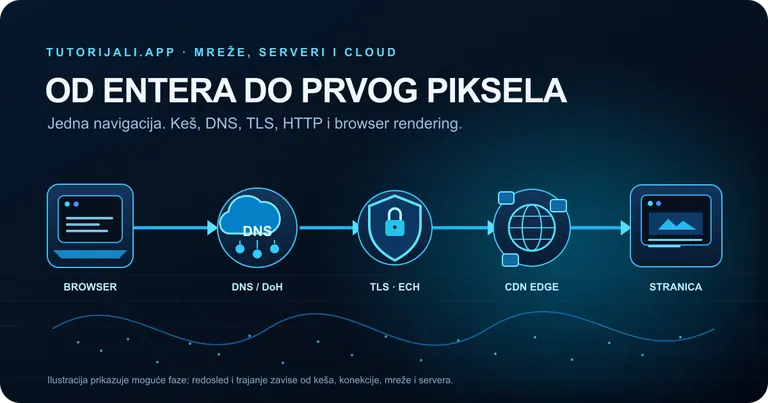
What Happens in the 500 ms After You Type tutorijali.app?
From entering a web address to the first pixel: what DNS, DoH, ECH, QUIC/TLS, HTTP/3, CDNs, and browser rendering actually do, with measurements from tutorijali.app.

2,270 Useful Websites and Internet Tools for 2026
A searchable directory of 2,270 websites, services, databases, maps, tools, communities, and interactive projects. Search across names, descriptions, topics, categories, and domains.

Google AI Studio 2026: How to Use Gemini Models for Free and Build AI Apps
Google AI Studio lets you experiment with much of the Google AI ecosystem for free. This guide covers Gemini models, multimodal workflows, the API, content generation, grounding, code execution, and building AI apps.
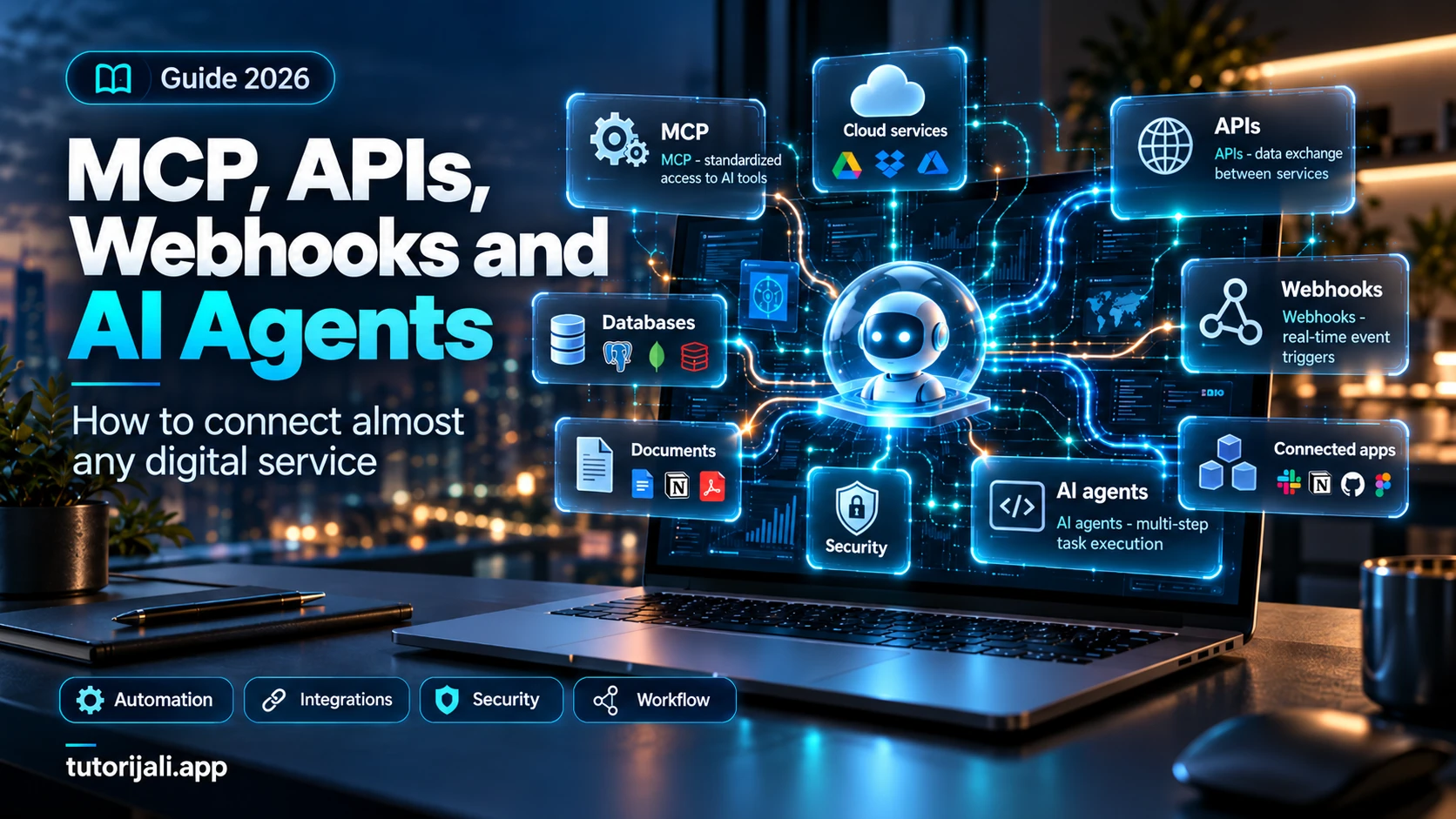
MCP, APIs, Webhooks and AI Agents: How to Connect Almost Any Digital Service in 2026
A complete practical guide to MCP, APIs, webhooks, and AI agents: compare the technologies, build n8n workflows and a Python MCP server, receive webhooks securely, explore 25 integration ideas, and review a production checklist.

How to Find Clients and Build a Premium AI Website Demo in 20 Minutes: Claude Opus 5.5, 3D, and 15 Prompts
A practical guide to researching local businesses, building an AI-assisted website demo, and using 15 prompts for different industries.
Share your thoughts, questions, or tips about this article.