A careful guide to SSD/NVMe firmware updates in Windows 10 and 11, including Intel VMD and RST, BitLocker, Safe Mode, RAID risks, OEM drives, and recovery steps.
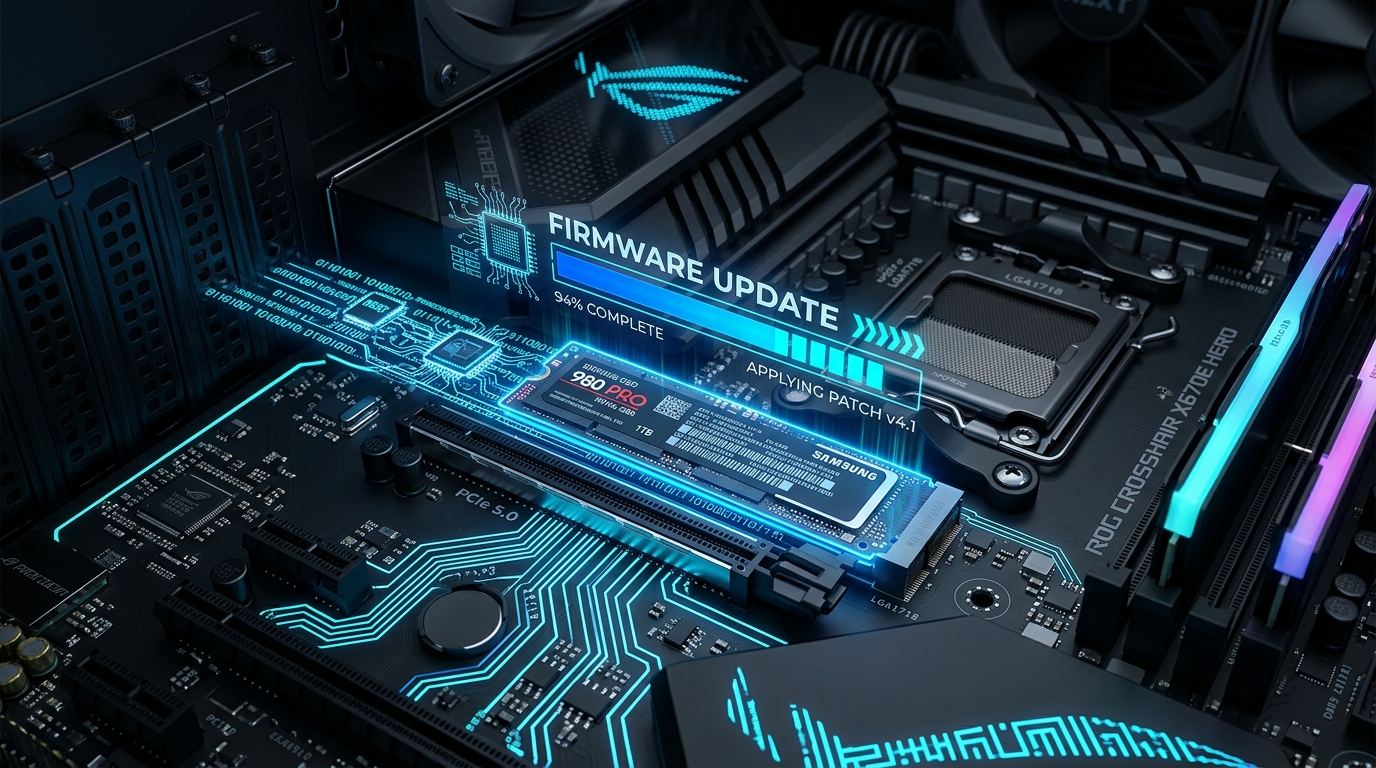
Category: Tutorials | Publication date: September 17, 2026.
Topic: Updating SSD/NVMe firmware in Windows and resolving Intel VMD, Intel RST, and RAID disk detection problems
Author: Zoran Knežević | Reading time: ~22 minutes
Updating firmware on SSDs (Solid-State Drives) and NVMe storage modules is one of the most delicate, yet important, procedures for maintaining the stability of modern computers. Many users still hit a wall: they download the drive manufacturer's official software, such as Crucial Storage Executive, Samsung Magician, Kingston SSD Manager, or SanDisk Dashboard, launch it, and the program reports that the drive does not exist, is unsupported, or is in RAID mode.
This detailed guide explains why this happens on Windows 10 and Windows 11 computers, what Intel VMD and Intel RST actually are, how modern storage controllers work, and how to update drive firmware safely without losing data or reinstalling the operating system.
Important technical correction: Does having Windows on the SSD prevent an update?
Old IT blogs and online forums often repeat a false claim:
“SSD firmware cannot be updated because Windows is installed on that drive and keeps its files locked.”
That is not true.
Modern NVMe SSDs and manufacturer utilities fully support updating the system or boot drive while Windows is running normally. The manufacturer's utility loads the new microcode into a temporary buffer in the SSD controller using the NVMe Firmware Commit command, then asks you to restart the computer. During restart, the drive's hardware controller applies the new firmware before the operating system loads.
If the official utility cannot see your SSD, Windows being installed on the drive is almost never the cause. The real causes are:
- Intel VMD (Volume Management Device) or Intel RST (Rapid Storage Technology), which block direct access to the drive.
- A BIOS configured for factory RAID mode instead of direct access.
- Custom OEM drivers from the laptop manufacturer, such as Dell, HP, or Lenovo.
- A connection through an external USB enclosure or incompatible PCIe adapter whose bridge chip blocks NVMe commands.
- An OEM SSD model supplied in a prebuilt computer, which may require firmware from the computer manufacturer rather than the retail utility.
What is SSD firmware, and when should you update it?
Firmware, or embedded microcode, is the SSD's own operating system. It is stored in the SSD controller's internal memory and manages all key processes:
- FTL (Flash Translation Layer): Translates logical addresses from the operating system into physical locations in NAND memory cells.
- Wear leveling: Distributes wear across NAND cells so individual parts of the drive do not wear out too early.
- Garbage collection and TRIM: Frees blocks containing deleted data to preserve write performance.
- Thermal management: Regulates operating temperature and controls clock speed through thermal throttling.
- Error correction (ECC): Detects and corrects damaged bits in real time.
When does an update make sense?
- Fixing critical bugs that affect data integrity: Some SSD series shipped with defects that could put the drive into read-only mode or cause permanent failure. Well-known examples include early Samsung 980 PRO and 990 PRO models, as well as bugs affecting Crucial T500 and certain WD models.
- Resolving BSOD crashes: Frequent blue screens, especially WHEA_UNCORRECTABLE_ERROR or CRITICAL_PROCESS_DIED, during sleep or when waking the computer.
- Sleep and Modern Standby problems: The computer fails to wake from sleep or drains its battery while asleep because of errors in APST (Autonomous Power State Transition) profiles.
- Incorrect SMART readings: The drive reports false health information or rapid TBW (Total Bytes Written) wear.
- A manufacturer recommendation: The official release notes explicitly recommend an urgent update.
When should you NOT rush to update?
If your SSD has been completely stable for months and the new firmware's official Release Notes mention only a generic item such as “minor bug fixes for niche enterprise environments,” there is no need to take the risk. A firmware update changes the most sensitive storage layer. If you do not have a specific problem that the new version fixes, do not force a change to a stable system.
The key distinction: M.2, SATA, AHCI, and NVMe
One of the biggest misconceptions in older guides is confusing AHCI with NVMe.
- M.2 is only a physical form factor: An M.2 slot on a motherboard can support both the older SATA protocol and the fast PCIe/NVMe protocol. Having an “M.2 SSD” alone does not tell you whether the drive uses SATA or NVMe.
- AHCI (Advanced Host Controller Interface): A communication protocol designed more than 20 years ago for slow mechanical drives and SATA SSDs connected through a SATA controller.
- NVMe (Non-Volatile Memory Express): A protocol designed from the ground up for fast flash storage connected directly to the processor's PCIe bus, with support for up to 64,000 queues and parallel processing.
Important technical distinction:
An NVMe SSD does not become an “AHCI device.” When you switch the storage option in BIOS from RAID/VMD to standard mode, SATA drives move to AHCI, while NVMe drives move to native PCIe/NVMe mode under Microsoft's system driver,stornvme.sys. BIOS manufacturers often simplify their menus and label the options “RAID or AHCI,” even though for an NVMe drive this really means choosing between the VMD/RAID layer and the direct NVMe controller.
What are Intel VMD and Intel RST?
Why do popular SSD manufacturer programs such as Crucial Storage Executive and Samsung Magician often fail to see a drive on Intel computers from the 11th, 12th, 13th, or 14th generations, or Core Ultra series?
The usual cause is Intel VMD (Volume Management Device) and its accompanying Intel RST (Rapid Storage Technology) driver.
What does the communication path through VMD look like?
On factory configurations of many laptops and branded desktop computers from Dell, HP, Lenovo, Acer, and ASUS, Intel VMD is enabled in UEFI/BIOS:
[ Application / Windows OS ]
           ↓
[ Intel RST / VMD Driver (iaStorVD.sys) ]
           ↓
[ Intel Volume Management Device Controller ]
           ↓
[ Physical NVMe SSD ]
Intel VMD acts as a hardware intermediary integrated into the processor. It intercepts PCIe lanes that lead to M.2 slots and groups them under a single Intel VMD storage controller.
What does direct, native NVMe communication look like?
When VMD is disabled, Windows manages the drive directly:
[ Application / Windows OS ]
           ↓
[ Microsoft Standard NVM Express Controller (stornvme.sys) ]
           ↓
[ Physical NVMe SSD ]
Why does VMD interfere with SSD software?
Intel VMD is not a fault, bug, or malware. It is a legitimate enterprise technology designed for RAID configurations, protection against system failure during hot removal of a drive, and error aggregation.
However, many SSD manufacturer tools from Crucial, Samsung, and Kioxia rely on sending specific NVMe Admin commands directly to the drive. When Intel VMD is active, the iaStorVD.sys driver filters and intercepts those commands. To the manufacturer's software, a drive behind VMD looks like an unknown logical volume or SCSI device rather than a direct NVMe drive. As a result, the firmware update button remains disabled or the software reports “No supported drive detected.”
Real RAID vs. VMD with a single SSD
Before considering a BIOS change, you must identify which scenario applies to you:
Scenario A: One SSD with factory-enabled VMD (the most common case)
You bought a laptop or prebuilt desktop with one NVMe drive, but the manufacturer left VMD/RST enabled in BIOS. There is no second drive in the computer and no RAID array is in use.
- Risk of changing the setting: Moderate. With the correct procedure through Windows Safe Mode, the system can switch safely to standard NVMe mode without data loss.
Scenario B: A real RAID array (two or more drives in RAID 0, 1, or 5) or Intel Optane
Your computer has two drives combined into RAID 0 (striping) for speed, RAID 1 (mirroring) for protection, or Intel Optane cache memory paired with a hard drive.
- WARNING: In this scenario, never randomly disable VMD or RAID in BIOS! Disabling the controller will immediately make Windows stop recognizing the partitions, break the RAID array, and may permanently cut off access to your data.
Mandatory safety preparation before making any changes
Updating firmware and changing a storage controller are not the same as an ordinary Windows Update. A mistake can prevent the operating system from booting.
- Make a complete backup: Save important documents to an external drive or cloud storage. Creating a full system image is recommended using tools such as Macrium Reflect, Veeam, or Hasleo Backup.
- A System Restore Point is NOT enough: A restore point saves only the Windows registry state and system files. If firmware physically disables the SSD controller, System Restore cannot help.
- Use stable power: Connect a laptop to its charger. Never update firmware while the computer is running on battery or during an unstable power supply.
- Record the factory BIOS settings: Before changing anything in BIOS, take a photo of each Storage/VMD screen so you know the exact original settings to restore.
BitLocker: How to avoid locking yourself out of the computer
Modern versions of Windows 11 and Windows 10 automatically enable BitLocker drive encryption on most newer laptops and branded desktop computers.
Any change to the storage controller mode, such as disabling VMD or switching from RAID to AHCI/NVMe, changes the configuration profile measured by the TPM (Trusted Platform Module) chip. When Windows detects a change in the hardware chain, it will ask for the 48-digit BitLocker Recovery Key on the next startup.
Check BitLocker status
Open PowerShell as administrator and enter:
Get-BitLockerVolume -MountPoint "C:"
Or use the traditional Command Prompt (CMD):
manage-bde -status C:
If the status is “Protection On,” BitLocker is active.
Save the Recovery Key
Before taking any action, confirm that you have saved the key. Sign in to your Microsoft account from another device, such as a phone, at:
https://account.microsoft.com/devices/recoverykey
If the computer belongs to your workplace, ask the IT administrator for the key. If you are not sure you have the key, do not continue!
Temporarily suspend BitLocker
To prevent Windows from asking for the key at every restart during setup, you can temporarily suspend protection:
Suspend-BitLocker -MountPoint "C:" -RebootCount 0
What does
-RebootCount 0mean?
A value of0tells Windows to leave protection suspended through an unlimited number of restarts until you explicitly turn it back on yourself. The drive remains encrypted, but the key is temporarily available in memory to make configuration easier.
After successfully completing the firmware update and checking that the system works, resume BitLocker:
Resume-BitLocker -MountPoint "C:"
Check the SSD model, firmware version, and controller
Before downloading any tool, find the exact details of your hardware.
Check the model and current firmware through PowerShell
Open PowerShell as administrator and enter:
Get-PhysicalDisk | Select-Object FriendlyName, MediaType, BusType, HealthStatus, FirmwareVersion
For a more detailed view, you can also use a CIM instance:
Get-CimInstance Win32_DiskDrive | Select-Object Model, FirmwareRevision, InterfaceType, PNPDeviceID
Note: Some generic drivers do not always show the full NVMe firmware revision in PowerShell. The manufacturer's software or a diagnostic tool such as CrystalDiskInfo provides the most accurate information.
Check the active storage controller in Device Manager
Press Win + X and select Device Manager. Expand Storage controllers:
- Intel RST VMD Controller / Intel RST VMD Managed Controller: The system is using the Intel VMD driver. The SSD is hidden behind Intel's layer.
- Standard NVM Express Controller: The SSD communicates directly through Microsoft's native NVMe driver. This is ideal for manufacturer utilities.
- AMD-RAID Bottom / Controller: Present on some AMD platforms when RAID mode is active.
- Microsoft Storage Spaces Controller: The disk may be part of a Windows software storage pool.
For a quick controller overview in PowerShell:
Get-PnpDevice -Class SCSIAdapter | Select-Object FriendlyName, Status, InstanceId | Format-Table -AutoSize
Golden rule: Try the safest sequence first
Do not immediately change BIOS settings. Always follow this safety sequence:
1. Install the latest official utility from the SSD manufacturer
                           ↓
2. Does the program recognize the SSD and offer an update?
        ↙                                   ↘
      YES                                    NO
       ↓                                     ↓
Update the firmware!              Check the official documentation
(Do not change BIOS/VMD)                     ↓
                                  Is there a bootable updater?
                                        ↙          ↘
                                      YES           NO
                                       ↓            ↓
                              Boot from USB       Only now consider
                              (If it sees the     switching from VMD/RST
                               drive, update)     to standard NVMe
If the manufacturer's factory software can already see your SSD behind the VMD controller and successfully offers new firmware, update it and leave the BIOS settings alone!
Bootable firmware update (ISO, USB, or UEFI)
If the Windows application cannot recognize the drive, the next safest step is to check whether the manufacturer offers a bootable firmware updater.
This is a specialized mini operating system, usually a customized Linux distribution or UEFI application, written to a USB flash drive with a tool such as Rufus or Ventoy.
Who offers bootable solutions?
- Samsung: Offers official bootable ISO files for many retail models, such as the 980 PRO and 990 PRO.
- Crucial / Micron: Periodically publishes ISO packages for certain drive series in its support section.
- Seagate: Offers the SeaTools Bootable USB creator.
- Solidigm / Intel: Provides the Solidigm Storage Tool (SST), which has a UEFI Shell extension for flashing directly before the operating system starts.
Advantages and limitations of the bootable method
- Advantage: It completely bypasses Windows drivers, antivirus filter drivers, and possible operating system conflicts.
- Limitation: If VMD is configured in BIOS so aggressively that an M.2 slot is invisible to a standard Linux kernel without an Intel VMD module, a bootable USB will not see the drive either until you temporarily change the controller mode.
Main procedure: Resolve VMD/RST problems without reinstalling Windows
If the manufacturer does not offer a bootable tool and the Windows utility cannot see the drive because of a VMD/RST controller, use the following advanced procedure.
Why is Safe Mode needed?
If you enter BIOS and simply turn off VMD, Windows may show a blue screen with INACCESSIBLE_BOOT_DEVICE the next time it starts. The reason is simple: Windows tries to load the controller driver that was active when it shut down,iaStorVD.sys.
If you schedule Safe Mode in Windows before changing BIOS, Windows is forced to scan the hardware at startup and activate a generic storage driver, such asstornvme.sysorstorahci.sys. This lets it adapt to the new configuration automatically.
Step 1: Prepare Windows for Safe Mode
Open the Run dialog by pressing Win + R.
- Enter
msconfigand press Enter. - Open the Boot tab.
- Under Boot options, check Safe boot and select Minimal.
- Click Apply, then OK. Do not restart the computer yet. If prompted, choose Exit without restart.
Alternative using an administrator Command Prompt:
bcdedit /set {current} safeboot minimal
Step 2: Enter BIOS/UEFI
Restart the computer and immediately press the BIOS key, usually F2 or Del, F10 on HP computers, or Fn + F2 on Lenovo systems.
Find the storage settings. Option names vary by motherboard and laptop manufacturer:
- ASUS: Advanced Mode (F7) -> Advanced -> VMD setup menu -> Enable VMD Controller -> Disabled
- MSI: Settings -> Advanced -> Integrated Peripherals -> VMD Configuration -> Disabled
- Gigabyte / AORUS: Settings -> IO Ports -> Intel VMD Technology -> Disabled
- ASRock: Advanced -> Storage Configuration -> VMD Configuration -> Disabled
- Dell / Alienware: System Configuration -> Storage / SATA Operation -> Change “RAID On” to “AHCI/NVMe”
- HP: Advanced -> System Options -> VMD Controller label or Configure Storage Controller -> AHCI / Native
- Lenovo: Configuration -> Storage -> Controller Mode -> Change “RST Mode / VMD” to “AHCI / NVMe Mode”
- Acer: Under Main, press
Ctrl + Sif the option is hidden, then change VMD from Enabled to Disabled.
Save the changes and exit BIOS (F10 -> Save Changes and Exit).
Step 3: First boot into Safe Mode
The computer will restart and automatically enter Windows Safe Mode.
The screen may have a lower resolution and a black background, which is completely normal. Windows now recognizes the drive through the Microsoft Standard NVM Express controller and records the change in its registry.
Step 4: Return to normal Windows mode
While in Safe Mode:
- Press
Win + Rand entermsconfig. - On the Boot tab, clear the Safe boot checkbox.
- Click Apply and OK.
If you used BCDEdit:
bcdedit /deletevalue {current} safeboot
Restart the computer into normal mode.
Step 5: Check the result
After Windows starts normally:
- Open Device Manager (
Win + X-> Device Manager). - Check Storage controllers.
- Instead of Intel RST VMD, you should see Standard NVM Express Controller.
- Run the SSD manufacturer's application, such as Crucial Storage Executive or Samsung Magician. The drive should now be recognized at full capacity, with SMART data available and the Firmware Update button enabled.
Technical analysis: Is uninstalling the Intel RST driver necessary?
Some popular online instructions, such as the well-known Scottie's Tech Info guide from 2022, recommend manually doing this in Device Manager before entering Safe Mode:
Device Manager -> Storage controllers -> Intel RST VMD Controller -> Uninstall device (without deleting the driver software).
Is this step still necessary in Windows 10 and 11?
In most cases, NO.
The modern Plug-and-Play subsystem in Windows 10 and 11 automatically re-enumerates the PCI tree in Safe Mode. When BIOS stops reporting a VMD device (class ID 0104, RAID) and reports a direct NVMe controller instead (class ID 0108, Non-Volatile Memory subsystem), Windows automatically binds stornvme.sys.
What is more, it is very useful to leave the Intel RST driver installation files on the system. If you later want or need to restore VMD for any reason, such as a laptop's factory recovery system, Windows will already have the driver and can start without additional complications. Deleting the driver package can make rollback unnecessarily difficult.
What if INACCESSIBLE_BOOT_DEVICE appears?
If the computer restarts to a blue screen with INACCESSIBLE_BOOT_DEVICE after a BIOS change, do not panic. The data on the drive is intact.
Solution 1: Immediately restore the factory setting
- Turn off the computer by holding the power button for 5 seconds.
- Turn it on and enter BIOS (
F2,Del). - Restore the storage setting exactly as it was:
- Change VMD Disabled back to VMD Enabled.
- Change AHCI back to RAID On / Intel RST.
- Save the changes (
F10) and restart the computer.
Windows should start normally again.
Why did the error happen?
The error occurs if the computer did not properly enter Safe Mode before the BIOS change, or if the manufacturer's BIOS locked the transfer of storage resources.
In that case, repeat the Safe Mode preparation using an explicit command in Command Prompt as Administrator:
bcdedit /set {current} safeboot minimal
Only after confirming that Windows successfully enters Safe Mode should you enter BIOS and disable VMD.
Specific scenarios: USB enclosures, OEM drives, and AMD systems
External USB enclosures and adapters
Many users try to update an SSD by placing it in an external M.2 NVMe USB adapter or enclosure.
In 95% of cases, this will not work.
External enclosures use controller bridge chips from manufacturers such as Realtek, JMicron, and ASMedia that translate the NVMe protocol.
The enclosures generally do not pass through low-level, vendor-specific NVMe Admin passthrough commands that software uses to flash firmware.
Solution: Connect the SSD directly to an available M.2 PCIe slot on the motherboard.
OEM SSDs in branded computers
If you bought a prebuilt laptop or desktop from Dell, HP, Lenovo, or Microsoft Surface, it may contain an SSD physically manufactured by Samsung, Micron (Crucial), Kioxia, or Western Digital but carrying an OEM model designation:
- Example: Samsung PM9A1, PM981, PM991, which are OEM versions of the 980 PRO or 970 EVO.
- Example: Micron 2400 or 3400, which are OEM versions of Crucial models.
- Example: Kioxia BG5 or XG6.
Official retail programs such as Samsung Magician and Crucial Storage Executive may not recognize these drives or may show “Genuine SSD: No / OEM Drive” and disable the update.
Solution: Do not force-flash retail firmware! You could permanently destroy, or brick, the SSD. Firmware updates for OEM drives are published only by the computer manufacturer, such as Dell, HP, or Lenovo, through its support programs like Dell SupportAssist, Lenovo Vantage, or HP Support Assistant, or in the driver section of its website.
AMD computers (AMD RAID / RAIDXpert2)
Intel VMD is a technology reserved exclusively for Intel platforms. If you have an AMD processor, such as Ryzen, and the program cannot see your NVMe drive, VMD is not the cause.
On AMD systems, the problem may be:
- NVMe RAID Mode is enabled in BIOS instead of AHCI/NVMe.
- The optional AMD RAIDXpert2 driver is installed instead of Microsoft's standard driver.
The check is similar: inspect Device Manager and switch the SATA/NVMe mode in BIOS to standard mode after preparing Safe Mode.
Microsoft Storage Spaces
If a drive has been added to a Windows Storage Spaces pool, the operating system creates a virtual layer that prevents manufacturer apps from sending firmware commands directly. Do not delete Storage Spaces pools without a complete backup of all data.
Virtual machines
Firmware cannot be updated from inside an ordinary virtual machine, such as Hyper-V, VirtualBox, or VMware Workstation, because the virtual machine sees only an emulated virtual drive, not the actual physical PCIe NVMe controller. The only exception is advanced PCIe Passthrough (DDA) in server environments.
SSD manufacturers: tools, capabilities, and limitations
Each manufacturer has its own rules, tools, and specific requirements. Here is an overview of leading brands on the market:
Crucial / Micron
- Official tool: Crucial Storage Executive
- Current series: T705, T700, T500 (Gen 5 and Gen 4 PCIe), P3, P3 Plus, and P5 Plus series, as well as the MX500 and BX500 SATA models.
- Limitations: Extremely sensitive to Intel VMD and RST drivers. On the Crucial T500, if VMD is enabled, the tool often reports the drive as unknown or disables the “Firmware Update” section. It includes a built-in option to create a bootable USB for some series.
- Recommendation: If Storage Executive does not offer an update for a T500 or P3, use the Safe Mode procedure and disable VMD.
Samsung
- Official tool: Samsung Magician
- Current series: 990 PRO, 990 EVO, 980 PRO, 980, 970 EVO Plus, and 870 EVO.
- Limitations: Does not support OEM drives from the PM series. In RAID/VMD mode, it often shows limited information and cannot check firmware. It does not support drives connected through an external USB enclosure.
- Bootable option: Samsung provides official bootable ISO files for most retail NVMe drives on its download page. This is the cleanest method if you do not want to change Windows settings.
Kingston
- Official tool: Kingston SSD Manager (KSM)
- Current series: KC3000, Fury Renegade, NV2, NV3, and A400.
- Limitations: Must be run with administrator privileges. Requires direct drive access through Microsoft's NVMe driver. Does not support updates over a USB interface.
Solidigm (formerly Intel NAND)
- Official tools: Solidigm Synergy Toolkit for a graphical interface and Solidigm Storage Tool (SST) for advanced CLI and UEFI use.
- Current series: P44 Pro, P41 Plus, and older Intel series such as 670p and 660p.
- Advantages: Solidigm offers excellent CLI support and a UEFI Shell version that can update firmware before Windows loads, which is useful for bypassing VMD restrictions.
KIOXIA (formerly Toshiba Memory)
- Official tool: KIOXIA SSD Utility
- Current series: Exceria Pro, Exceria Plus G3, and Exceria G2.
- Limitations: Officially does not support drives in hardware or software RAID, or drives managed by Microsoft Storage Spaces. It has a built-in feature to create a Linux bootable USB directly from the utility.
Western Digital / SanDisk
- Official tool: Western Digital Dashboard / SanDisk Dashboard
- Current series: WD_BLACK SN850X, SN770, WD Blue SN580, and SN5000.
- Limitations: A unified platform for Western Digital and SanDisk internal drives. If a drive is behind a VMD controller that blocks SMART passthrough, the firmware update option will not be offered.
Corsair
- Official tool: CORSAIR SSD Toolbox
- Current series: MP700 PRO, MP600 ELITE, and MP600 PRO XT.
- Limitations: Older interface; requires direct AHCI or native NVMe mode.
Seagate
- Official tool: SeaTools 5 for Windows and SeaTools Bootable
- Current series: FireCuda 540, FireCuda 530, and BarraCuda series.
- Advantages: The Linux-based SeaTools Bootable provides excellent compatibility when Windows blocks drive commands.
Manufacturer and tool comparison
| Manufacturer | Official software tool | Firmware update through Windows | Bootable USB option | Sensitivity to RAID / Intel VMD | External USB support |
|---|---|---|---|---|---|
| Crucial / Micron | Crucial Storage Executive | Yes (restart required) | Yes (some models) | High (often cannot see the drive) | No |
| Samsung | Samsung Magician | Yes (direct / restart) | Yes (official ISO files) | High (features may be disabled) | No (except external T-series) |
| Kingston | Kingston SSD Manager | Yes (direct) | No (Windows only) | Medium/High | No |
| Solidigm | Solidigm Synergy / SST | Yes (GUI and CLI) | Yes (UEFI Shell package) | Low (SST supports CLI) | No |
| KIOXIA | KIOXIA SSD Utility | Yes (direct) | Yes (built-in creator) | High (does not support RAID) | No |
| Western Digital | WD Dashboard | Yes (direct) | No (rare, older tools) | Medium/High | No (internal drives only) |
| Corsair | Corsair SSD Toolbox | Yes (direct) | No | High | No |
| Seagate | SeaTools 5 | Yes | Yes (SeaTools Bootable) | Medium | No for NVMe commands |
| SK hynix | SK hynix Drive Manager | Yes | Depends on model | High | No |
| Sabrent | Rocket Control Panel | Yes | No | Medium | No |
Post-update checks and drive health
After the computer successfully applies the new firmware and starts Windows, complete these final checks:
- Check the firmware version: Open the manufacturer's utility or CrystalDiskInfo and confirm that the firmware version has changed.
- SMART status: Confirm that no critical values have worsened, such as Critical Warning, Available Spare falling below its threshold, or an increase in Media and Data Integrity Errors.
- Review Event Viewer: Press
Win + X-> Event Viewer -> Windows Logs -> System. Filter for errors fromstornvmeordisk. There should be no new I/O errors or controller reset warnings. - Check Sleep/Wake: Put the computer to sleep and wake it. Confirm that the system resumes immediately without freezing.
Do not overdo benchmark tests!
There is no need to run CrystalDiskMark ten times in a row after a firmware update. Each test writes tens of gigabytes to the drive and unnecessarily consumes cell endurance (TBW). One short performance test is enough for a quick stability check.
Should you re-enable Intel VMD after the update?
This is one of the most common questions:
“I successfully updated firmware in Native NVMe mode. Do I need to return to BIOS and enable Intel VMD again?”
The answer depends on your system.
When you do NOT need to re-enable VMD
- You have an ordinary desktop or laptop with one NVMe drive.
- The system works fully and reliably in Standard NVM Express Controller mode, and all applications work normally.
- You want the manufacturer's software, such as Samsung Magician or Crucial Storage Executive, to have direct drive access for monitoring health, temperature, and future updates.
When it is preferable or mandatory to re-enable VMD
- Business computers: The device belongs to a company whose IT policy requires a strictly defined system image with Intel RST features enabled.
- Factory OEM recovery: Some branded laptops have a hidden factory recovery partition configured to work only through the Intel RST driver.
- You plan to create a RAID array or add a second drive in RST: You need VMD for dedicated drive management.
Warning when restoring VMD:
If you decide to re-enable VMD, repeat the same procedure through Safe Mode. If you simply enable VMD in BIOS while Windows is configured forstornvme.sys, you will get INACCESSIBLE_BOOT_DEVICE again. Enable Safe Boot in msconfig, restart into BIOS, enable VMD, enter Safe Mode, disable Safe Boot, and restart.
Why avoid outdated Registry tricks?
Older forums from the Windows 7 and early Windows 10 era often mention changing the Registry before entering BIOS:
HKEY_LOCAL_MACHINE\SYSTEM\CurrentControlSet\Services\storahci or iaStorV -> change the Start value to 0 or edit the StartOverride key.
Avoid these methods on modern Windows 11 and newer hardware:
- These tricks were created for old SATA controllers and switching from IDE to AHCI mode.
- Modern NVMe drives use
stornvme, notstorahci. - Directly editing these Registry branches without fully understanding service dependencies can permanently damage the order in which Windows loads drivers in the BCD database.
Using the Safe Mode mechanism through msconfig or bcdedit is the official, safe, and supported way to make Windows refresh its storage drivers.
Short flowchart
              [ Check SSD model and firmware ]
                               ↓
                   [ Back up important data ]
                               ↓
                   [ Check BitLocker status ]
                   (Is the 48-digit key saved?)
                               ↓
                [ Run the manufacturer's tool ]
                               ↓
                  Can the tool see the SSD and firmware?
                       ↙               ↘
                    YES                  NO
                     ↓                   ↓
             [ Run the update ]    [ Check official documentation ]
                     ↓                   ↓
             [ Restart and check ] [ Is there a bootable USB tool? ]
                                          ↙            ↘
                                       YES               NO
                                        ↓                ↓
                               [ Boot from USB ]    [ Check VMD / RAID ]
                               (Update works?)    (Is this a real RAID?)
                                   ↙        ↘          ↙             ↘
                                 YES          NO       YES             NO
                                  ↓           ↓        ↓               ↓
                              [ Done ]  [ Analyze VMD ] [ Do not touch ] [ Safe Mode + ]
                                                        [ VMD/RAID!   ] [ disable VMD ]
                                                                       [ in BIOS     ]
Quick checklist
Before you begin, check every item:
- Backup: All important data is saved to an external location or cloud storage.
- BitLocker: Status checked, 48-digit Recovery Key saved off the computer, protection temporarily suspended.
- Power: Laptop connected to its original charger; desktop connected to a stable power source.
- BIOS settings: The current Storage menu settings in BIOS have been photographed.
- No active RAID array: Confirmed that the computer has one drive and does not use RAID 0/1/5 or Optane.
- Model and drive: Confirmed that the drive is not a locked OEM model requiring firmware from the laptop manufacturer.
- Official software: The original tool was downloaded only from the manufacturer's official website.
- Safe Mode: Minimal Safe Mode was prepared before changing any VMD setting in BIOS.
- Rollback plan: The exact procedure for restoring BIOS settings after an INACCESSIBLE_BOOT_DEVICE error is known.
Frequently asked questions (FAQ)
Will an SSD firmware update erase my data?
Under normal circumstances, no. An update is designed to preserve user partitions and data. However, because the controller's microcode is changing, any error or power interruption can cause data loss. That is why a backup is mandatory before starting.
Can I update the firmware on an SSD that has Windows installed on it?
Yes. Manufacturer tools support updates on the system drive. The software writes the new code to the drive's temporary memory and restarts the computer so the controller can apply the update before Windows loads.
Why does Samsung Magician not recognize my Samsung SSD?
The most common reasons are that the SSD is behind an Intel VMD/RST controller, is connected through an external USB adapter, or is an OEM model such as PM9A1 or PM991 that is not supported by the retail version of Magician.
Why does Crucial Storage Executive not see my Crucial T500?
Crucial Storage Executive often cannot communicate with a T500 when Intel VMD is enabled. Switching the system to Microsoft's Standard NVM Express controller using the Safe Mode procedure in this guide resolves the problem in most cases.
What exactly is Intel VMD?
Intel VMD (Volume Management Device) is a hardware technology in newer Intel processors that routes management of PCIe/NVMe devices through a specialized Intel controller for easier RAID setup and enterprise features.
Is it safe to disable Intel VMD?
If your computer has only one SSD and does not use RAID or Optane memory, disabling VMD is safe, provided you prepare Windows through Safe Mode first to avoid a blue screen.
Are AHCI and NVMe the same thing?
No. AHCI is a protocol intended for SATA drives. NVMe is a much faster, modern protocol for PCIe devices. When you disable RAID in BIOS, your NVMe drive switches to the native NVMe protocol, not AHCI.
What should I do if Windows shows INACCESSIBLE_BOOT_DEVICE after a BIOS change?
Enter BIOS again and restore the previous setting, such as re-enabling VMD or switching from AHCI back to RAID On. The computer should start normally again. Then repeat the procedure carefully, following the Safe Mode steps.
Can changing the controller trigger a BitLocker lockout?
Yes. Changing the storage controller changes the hardware profile that the TPM checks. Have the 48-digit BitLocker key ready before entering BIOS, or temporarily suspend protection with the Suspend-BitLocker command.
Can I update SSD firmware while it is in an external USB enclosure?
In most cases, no. USB bridge chips in enclosures block the NVMe commands needed for flashing. The drive must be installed directly in an M.2 slot on the motherboard.
Do I need to uninstall the Intel RST driver manually in Device Manager?
No. Modern Windows 10 and 11 automatically detect that the VMD device is gone in Safe Mode and bind Microsoft's Standard NVM Express controller. Keeping the Intel driver on the system makes it easy and safe to roll back if needed.
Should I re-enable VMD after a successful update?
If your computer has one drive and works reliably in Native NVMe mode, there is no need to re-enable it. Restore VMD only if specific software or factory OEM recovery requires it.
Does a bootable USB updater solve a VMD problem?
Sometimes, because it bypasses Windows drivers. However, if the motherboard BIOS hides the PCIe device behind VMD at the hardware level, even a Linux-based bootable USB will not see the drive until VMD is temporarily disabled.
How can I tell for sure whether I have a real RAID array?
Open Disk Management (diskmgmt.msc). If multiple physical drives are grouped under one partition or a volume labeled “Intel Rapid Storage RAID Volume,” you have an active RAID array. In that case, do not change VMD in BIOS.
Does this guide apply to AMD computers?
Intel VMD and Intel RST are Intel-only technologies. AMD computers use their own controllers. If you have a similar problem on an AMD system, check the BIOS settings for AMD RAID or NVMe RAID mode and switch to standard AHCI/NVMe mode.
Will a firmware update dramatically speed up an SSD?
Usually not. Firmware updates primarily provide bug fixes, stability, compatibility, and thermal regulation. A speed increase happens only if the previous firmware had a factory bug that was limiting performance.
Should I install every new firmware version that comes out?
No. If your system works perfectly and the new firmware does not include critical data-integrity fixes, you do not have to install every version at any cost.
What if my laptop has no option to disable VMD in BIOS?
Many modern thin laptops have a locked-down, minimal BIOS without an option to control VMD. Possible solutions are to use the laptop manufacturer's official recovery tool, temporarily move the SSD to a desktop computer to flash it, or wait for the computer manufacturer to publish a BIOS update that also updates the drive microcode.
Official and technical sources
This guide uses official technical documentation from hardware manufacturers and operating system vendors:
- Intel Corporation: Intel Volume Management Device (Intel VMD) Overview: Official specification and architecture for VMD technology and NVMe device management.
- Microsoft Learn: BitLocker overview and recovery guide: Official documentation on BitLocker encryption, TPM profiles, and PowerShell management.
- Microsoft Learn: Start your PC in Safe Mode in Windows: Information on loading boot-critical drivers in Safe Mode.
- Crucial / Micron Support: Crucial Storage Executive Overview & Firmware FAQs: Support for Crucial T500, T700, and T705, and troubleshooting drive detection issues.
- Samsung Semiconductor: Samsung Magician Software & Magician Bootable ISOs: Official tools, compatibility guides, and ISO packages for retail drives.
- Solidigm Support: Solidigm Storage Tool User Guide (CLI & GUI): Instructions for advanced NVMe flashing and UEFI support.
- Western Digital Support: Western Digital / SanDisk Dashboard User Guide: Official documentation for WD_BLACK and SanDisk NVMe devices.
- Kingston Technology: Kingston SSD Manager Technical Guide: Kingston driver specifications and limitations.
Additional technical sources
- Scottie's Tech Info (2022): How to remove Intel VMD without reinstalling Windows: A historical community guide used as a starting point for analyzing the transition from VMD to a standard controller.
Data and links checked: March 2026.
SEO optimization and metadata
- Suggested SEO title:
SSD/NVMe Firmware Update in Windows: Intel VMD and RST Guide(57 characters) - Alternative titles:
- How to Update SSD Firmware When the App Cannot See the Drive (Intel VMD)
- How to Fix Intel VMD and RST Problems During an SSD Firmware Update
- How to Disable Intel VMD Without Reinstalling Windows 11
- Crucial and Samsung SSD Firmware Updates: Fixing the Intel VMD Problem
- Complete Guide to Updating NVMe Firmware in Windows 10 and 11
- SSD Firmware Update on the System Drive: Myths and Fixes
- How to Safely Switch from Intel VMD/RST to Standard NVM Express
- Samsung Magician Cannot See an NVMe SSD? Fixing VMD and RAID Mode
- Suggested slug:
ssd-nvme-firmware-update-intel-vmd-rst-windows - Meta description:
Learn how to update SSD/NVMe firmware in Windows and fix Samsung Magician or Crucial drive detection problems caused by Intel VMD or RST controllers. - Primary keywords:
SSD firmware update,NVMe firmware update,Intel VMD,Intel RST,Samsung Magician cannot see SSD,Crucial Storage Executive T500,Standard NVM Express Controller,disable VMD in Windows 11 - Long-tail keywords:
how to update firmware on the system drive,INACCESSIBLE_BOOT_DEVICE after disabling VMD,BitLocker recovery key after changing BIOS storage mode,SSD firmware update through an external USB enclosure,difference between AHCI and NVMe protocols,Solidigm Storage Tool UEFI Shell update,Samsung PM9A1 OEM SSD firmware update

AI Models and Tools in 2026: A Guide to Major AI Services and Models
Explore the 2026 AI ecosystem, from leading models and companies to coding agents, image and video generators, and local AI tools.

Free Online Courses in 2026: A Complete Guide to Universities, Certificates, IT, AI, Languages, Business, Science, and More
A comprehensive guide to free online learning in 2026, from MIT and Yale lectures and CS50 certificates to IT, AI, languages, business, medicine, and interactive practice.

Best Developer Tools and Resources for 2026: A Complete Guide to AI, Coding, Git, Databases, APIs, Hosting, and Security
A practical directory of developer tools for 2026, from AI coding agents and modern IDEs to databases, hosting, APIs, security, and learning resources.

The Best Educational Websites, Courses, Tools, and Knowledge Bases: A Complete Guide
A comprehensive directory of 1,557+ curated educational platforms, university courses, science simulators, knowledge bases, and tools for independent study and lifelong learning.
Bash Shell Scripting Bootcamp: Linux Automation with 50+ Projects
Learn Bash scripting through more than 50 practical projects. Automate Linux servers, file processing, services, and DevOps tasks.
macOS Tahoe Essential Training: Complete Course
A beginner-friendly course covering macOS Tahoe, system settings, apps, privacy, security, and Apple Intelligence features.
Share your thoughts, questions, or tips about this article.